Plans and quotas
Two numbers decide what your plan lets you do: how many responses your quizzes may collect in a month, and how many quizzes you may keep published at once. By the end of this page you know where to read both, what your customers see when one is reached, and what a change of plan does to your live quizzes.
Where to see your plan and your usage
- Open the app.
- Select Plans & Billing in the app navigation.
The page opens on a Current plan block naming your plan and its price, with a Cancel subscription button next to it while you have one. Under it, the five plans sit side by side, each listing its quiz limit, its monthly response limit and the features it adds. Your own plan carries a Current plan badge, and every other card carries a Choose button with the plan name on it.
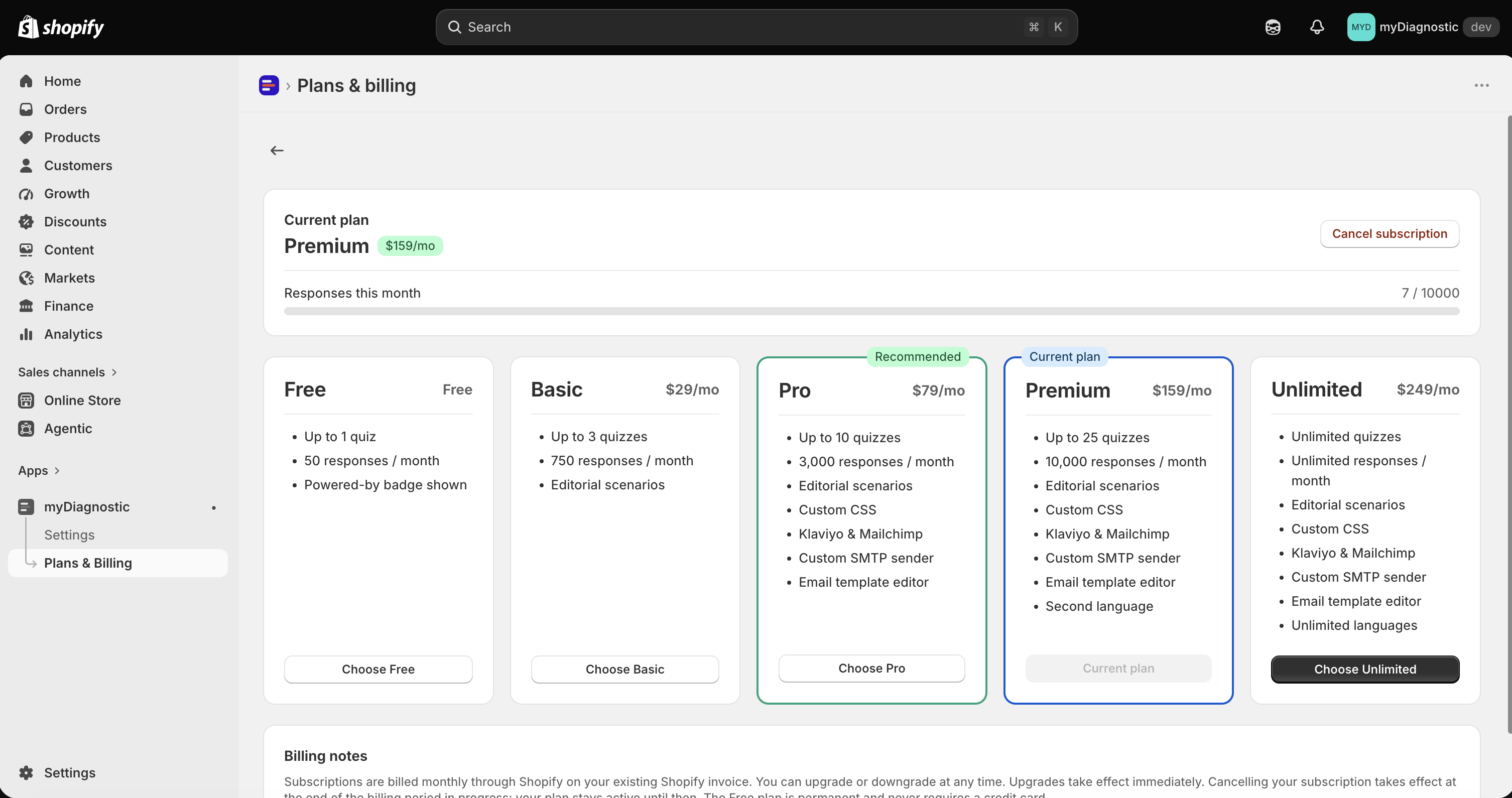
The full feature grid, plan by plan, is in Plan comparison.
What counts as a response
A response is one completed run of a quiz by one customer. It is counted at the moment the answers are submitted, which is also the moment it appears in the Responses tab. Someone who opens a quiz and abandons it counts for nothing, and neither does reopening a result, however many times: a result page that is read again is not a new response, see Result permalink.
The counter is monthly and follows the calendar. It returns to zero when the month changes, on its own, with nothing to reset and no relation to the day you subscribed. Plans & Billing shows it as Responses this month, with your usage over your limit and a bar underneath.

Your limit depends on the plan: 50 responses a month on Free, 750 on Basic, 3,000 on Pro, 10,000 on Premium, and no limit at all on Unlimited.
When you reach the response limit
Your quizzes stop accepting answers for the rest of the month. A visitor who opens one sees a short message in place of it, reading Quiz temporarily unavailable. Please try again. in English, and its equivalent in the language they are browsing in. Nothing else on your online store is affected, and no data is lost.
Two things bring the quiz back: the first of the following month, when the counter returns to zero, or an upgrade, which applies at once.
Result links already issued keep working throughout. A customer who finished the quiz before the limit was reached can still open their recommendation and add products to the cart, because reading an old result costs no quota.
The app warns you before that point and after it, on every admin page:
- At 80 percent of your limit, a warning banner titled Approaching your monthly response limit, giving your count, your limit and your plan.
- At the limit, a critical banner titled Monthly response limit reached: your quiz is unavailable to visitors, which says the same in the negative and offers the upgrade.
Both carry an Upgrade plan button, and both follow you through the admin rather than sitting on one page, so the interruption cannot go unnoticed. Neither appears on Unlimited, which has nothing to meter.
How many quizzes you can publish
The second limit counts published quizzes only: 1 on Free, 3 on Basic, 10 on Pro, 25 on Premium, and no limit on Unlimited.
Drafts do not count and there is no limit on them. A quiz that is not published consumes nothing, so you can prepare as many as you like and choose which ones go live.
At the limit, three things behave differently:
- Publishing another quiz is refused, with a message naming your plan and its number of active quizzes, and inviting you to unpublish one or to upgrade.
- Creating a quiz is refused as well, behind a banner reminding you that Drafts are unlimited. Unpublish one of your live quizzes to free a slot, or upgrade to publish more at once. Unpublish a quiz and creation is available again straight away.
- Duplicating a quiz stays possible. The copy is created as a draft, so it takes no slot. Its Klaviyo and Mailchimp connections arrive switched off, see Klaviyo and Mailchimp.
The badge on your quiz
On the Free plan, a small Powered by myDiagnostic line sits under the quiz on your online store. Every paid plan removes it, Basic included. There is no setting for it: it follows the plan.
Change your plan
Upgrades and downgrades both start from the same place: a Choose button on any plan card in Plans & Billing, which hands you to Shopify's own subscription page. The charge appears on your existing Shopify invoice.
Your first paid subscription opens a 14 day free trial, on whichever plan you choose, after which Shopify bills you through that same invoice. It is counted once from that first subscription, so changing plan later does not open another one.
The page states the timing: Upgrades take effect immediately. Cancelling your subscription takes effect at the end of the billing period in progress: your plan stays active until then. The Free plan is permanent and never requires a credit card.
Cancelling asks you to confirm first, and the confirmation is worth reading rather than clicking through: it tells you how many of your published quizzes will be unpublished when the period ends, and where your response count stands against the Free limit.
What a downgrade does to your published quizzes
A plan with a smaller quiz limit cannot keep them all live, so the app unpublishes the excess for you. It starts with the most recently created ones, which keeps your oldest and most linked-to quizzes serving.
Nothing is deleted. The quizzes go back to draft with their questions, scenarios and responses intact, and you can republish any of them within your new limit.
You are told which ones. A dismissible banner on the app home names them, titled after the quiz for a single one, as in "Skin routine finder" was unpublished to fit your Basic plan, or after the count for several, and it explains: Your plan includes 3 published quizzes at a time, so on that date the following quizzes were set back to draft. They are no longer shown on your storefront, but nothing was deleted: questions, scenarios and responses are intact. It ends by telling you whether you have a free slot, and how to choose which quiz is live.
Everything else a downgrade touches is kept the same way: your translations, your custom CSS, your mail server and your email platform connections all stay stored and come back when you upgrade again.