Email gate
The email gate is the screen that asks a customer for their email address after the last question, before the result they came for. By the end of this page yours is on or off by choice, says what you want it to say, and sends the addresses it collects only where you meant them to go.
Before you start
- A quiz open on its Questions tab.
- At least one question, since the gate is the screen that follows the last one.
Where the gate sits
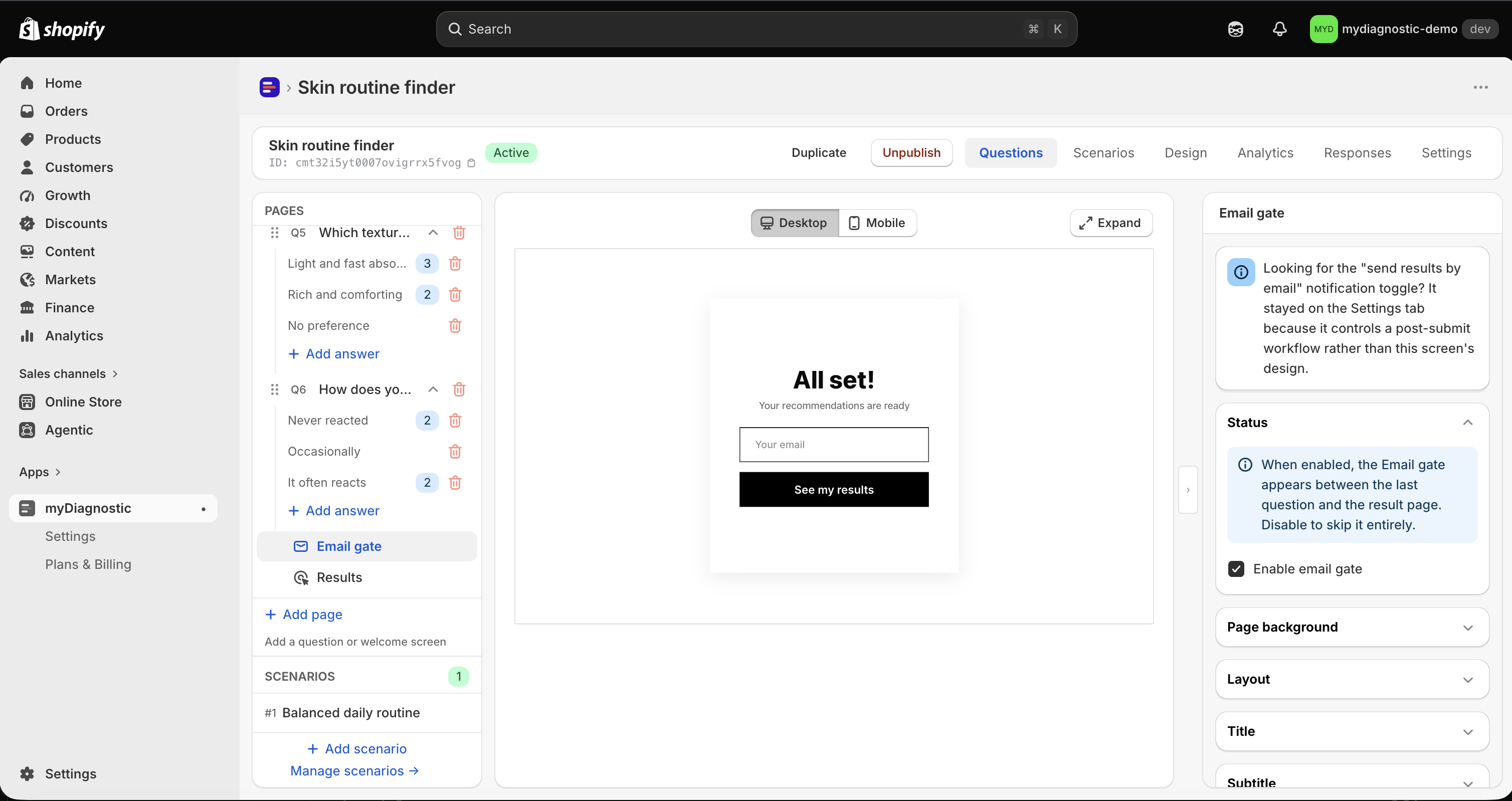
Every quiz has an email gate, and it is there before you go looking for it. The app creates it the first time you open the quiz in the editor, together with the Results row, and pins both at the bottom of the left sidebar, Email gate directly above Results.
Neither row can be dragged, and neither carries a delete icon. A quiz never holds two gates, and no quiz is without one. Select the row to open its settings in the panel on the right, titled Email gate.
The customer meets it after the last question and before the result. Nothing about their run is recorded until they get past it: the response, the answers behind it, the recommended products and the link to their result page are all written as the result screen loads. So a customer who closes the page on the gate leaves nothing behind, and costs you nothing against the monthly response allowance of your plan, see Plans and quotas.
Turn the gate off
- Select Email gate in the left sidebar.
- Open the Status section of the panel on the right.
- Clear Enable email gate.
- Select Save.
The section states the same thing above the checkbox: When enabled, the Email gate appears between the last question and the result page. Disable to skip it entirely.
With the gate off, the last question leads straight to the result. The response is still recorded, with whatever the welcome screen captured, and with no address unless a capture field asked for one.
One consequence is worth knowing before you switch it off: the result email goes with it. The gate being on is one of the conditions of that email, so turning the gate off stops it, whatever the Send results by email toggle says.
Write the copy
A new gate carries no text of your own, and it is readable to a customer all the same. What it shows then is the app's own wording, in the language the customer is browsing in.
Five fields hold the copy, across three sections of the panel:
- Title and Subtitle, each in the section of the same name.
- Placeholder text and Error message, in Email field.
- Button text, in CTA button.
All five arrive empty, and all five carry the help text Empty = inherits the App wording value (Settings). Fill one in and this quiz uses your wording. Empty it again and the app's wording comes back.
That fallback is written once for the whole store, in the app Settings, in the App wording card, under the group Email capture. The group holds seven entries: Title, Subtitle, Submit button, Email field placeholder, Invalid email message, Marketing consent sentence and Note below the field. See App wording.
The two places are not interchangeable. A field in the quiz changes this quiz. An entry in App wording changes every quiz in the store, and it is the only way to reach the consent sentence and the note under the field, which have no field of their own on this screen.
Each of the five fields is translated per language, next to the field it belongs to, see Secondary languages. Serving a second language needs the Premium plan or above.
The rest of the panel is appearance: Page background, Layout, Card, the colours and sizes inside Email field and CTA button, and Spacings. They behave like the equivalent controls on every other page of the quiz, see Design and tokens.
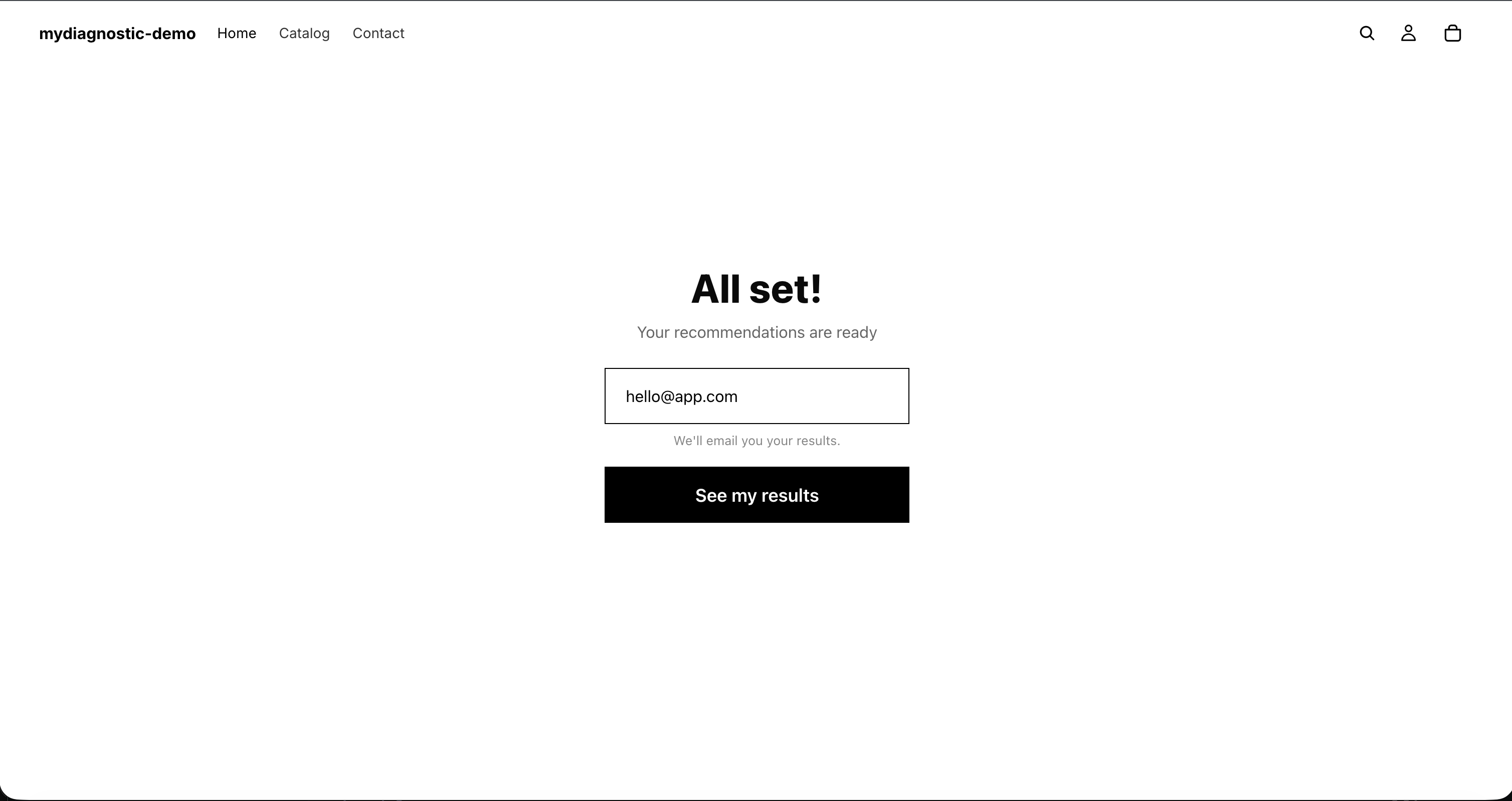
What the customer sees when the address is wrong
The button under the field stays disabled while the field is empty, so nothing happens until the customer types something.
When they select the button with an address the app cannot read, three things happen at once: a message appears under the field, the field takes the focus, and the quiz stays where it is. The message reads Please enter a valid email address. unless you filled in Error message. It goes away as soon as they type again.
The check is on the shape of the address, an at sign and a dot in plausible places, not on whether the mailbox exists. An address that reads correctly and belongs to nobody goes through, and the result email sent to it never arrives, with nothing in the app to tell you.
The consent checkbox Pro plan and above
A checkbox appears under the field when, and only when, the quiz syncs to an email platform: Klaviyo or Mailchimp connected, tested and switched on in the quiz Settings tab, on the Pro plan or above. No integration, no checkbox, and nothing to configure on this screen either way.
It reads I agree to receive personalized recommendations and updates. and it arrives unticked.
That tick is the entire permission. Without it the address is recorded for you and never sent to Klaviyo or Mailchimp, even with the integration live, even though the customer typed the address themselves. No setting overrides it, and nothing lets you tick it on their behalf.
You can rewrite the sentence in the app Settings, in the App wording card, under the entry Marketing consent sentence, in each language you serve. You cannot empty it: an empty entry falls back to the app's own sentence. The only way to take the checkbox off the screen is to switch the sync off in the quiz Settings.
Send the result by email
Submitting the address does not send anything by itself. The result email goes out when three things are true as the customer reaches the result:
- Send results by email is on, in the quiz Settings tab, in the Email card.
- The gate is on.
- An address was entered.
While that toggle is on, the customer reads a note under the field before they submit, We'll email you your results. by default. It is the entry Note below the field in App wording, so it is the store's wording, not this quiz's.
An address collected by a capture field on the welcome screen is not a substitute for the gate. With the gate off nothing is sent, whatever the toggle says: consent to receive the result is given on this screen, under that note, and nowhere else.
Ask for the address once. With the gate on, the address kept on the response is the one typed at the gate, because it is the only one the customer gave under that consent, and an email collected by a capture field on the welcome screen is then not recorded at all. With the gate off, the address kept is the one from the welcome screen.
The email works on every plan. Its logo, colours, wording and layout, and sending it through your own SMTP server, need the Pro plan or above, see Result email.
Can a customer reach the result without giving an address
There is no link to skip the gate, and no setting that adds one. While the gate is on, an address is the only way forward.
Three things get a customer to a result without one:
- You switch the gate off, which removes the screen for everybody.
- They open the permalink of a result recorded earlier, which shows that stored result and skips the quiz entirely, see Permalink.
- They leave. That one costs you the whole run: no response, no address, no trace anywhere in the app.
Where the addresses go
Two destinations always, and a third on condition.
The Responses tab of the quiz lists them, in a table of Date, Name, Email, Age, Scenario, Products and Result, the last column holding the link to the customer's result page. Export CSV on that tab downloads the same seven columns.
Klaviyo or Mailchimp receives an address only when all three of these hold at the moment of submission: the customer ticked the consent checkbox, the store is on the Pro plan or above, and the service is enabled in the quiz Settings after a successful connection test.
What travels with the address differs by platform. Klaviyo receives the first name, the age, the quiz name, the scenario title, the recommended products and the date, as properties of the profile. Mailchimp receives the first name and the tags. How to connect either one, and what each does with what it receives, is covered in Klaviyo and Mailchimp.
A downgrade below Pro stops the sync without deleting anything: your credentials, list and tag are kept, addresses keep arriving in Responses, they stop reaching the platform, and the sync resumes when you upgrade.
Tag the contacts you send
Contact tag is a field of the quiz Settings tab, one per service, and it starts at quiz-taker.
It travels with every contact this quiz syncs, next to a second tag the app writes by itself from the scenario the customer landed on. Two customers who reached two different results carry two different second tags, which is what lets you build a segment per result in your email platform.
Where the tag lands depends on the platform, and the app says so under the field. On Mailchimp it is a tag on the contact: Added as a Mailchimp tag on each synced contact, next to the automatic scenario tag. On Klaviyo it is an entry of a profile property instead: Saved on each synced profile as a quiz_tags entry, next to the automatic scenario tag.
The tag is set per quiz and per service, so give each quiz its own wording when you need to tell their contacts apart.
Measure the gate
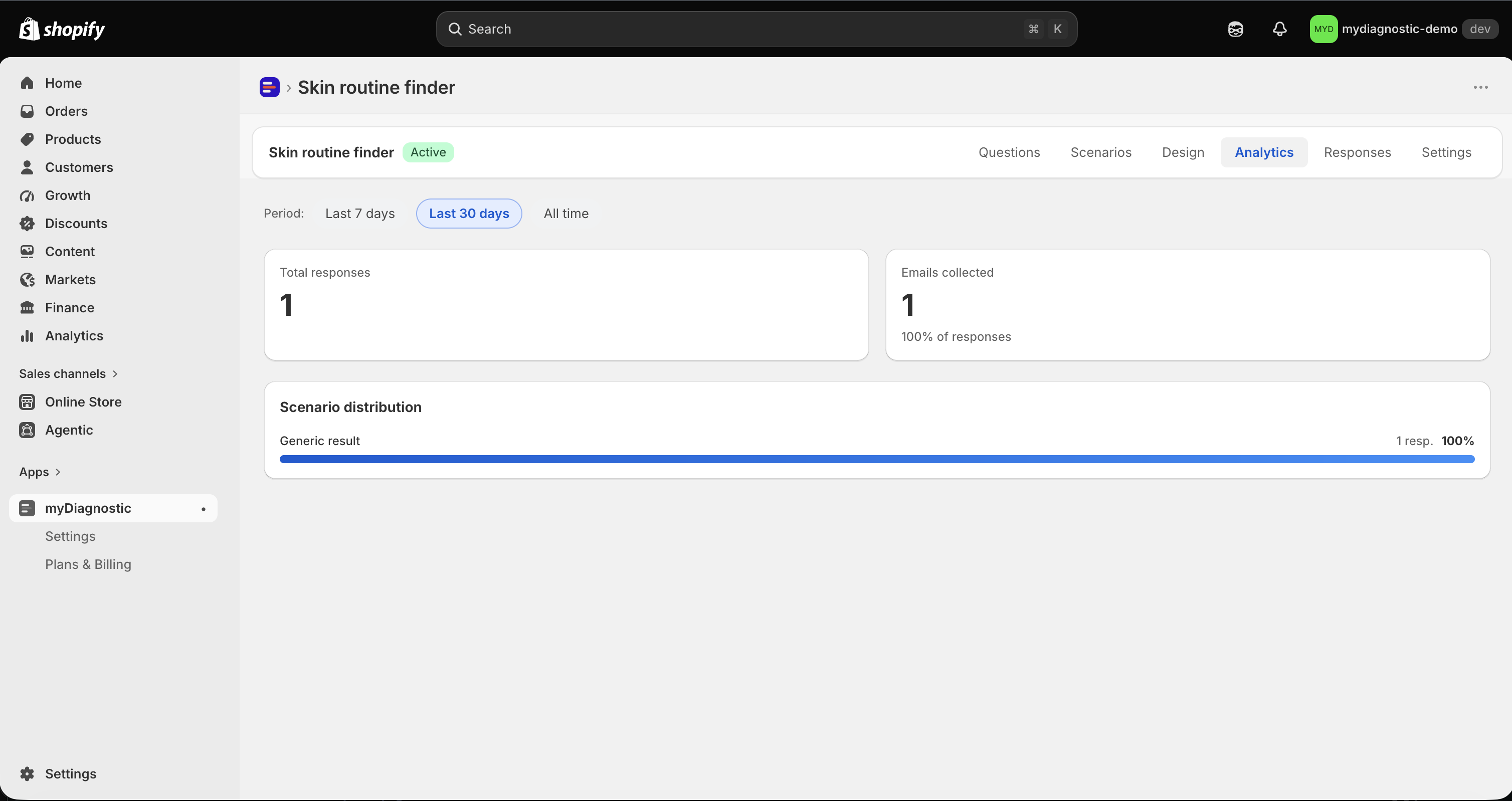
The Analytics tab of the quiz counts two figures over the period you pick, Last 7 days, Last 30 days or All time: Total responses, and Emails collected with the share of responses under it.
Read Emails collected for what it counts: recorded responses that carry an address, whichever screen that address came from. A quiz that also asks for an email in a capture field on its welcome screen counts those responses here too, so the figure is not a measure of the gate on its own.
Nothing counts the customers who saw the gate and left. No response exists before the gate is passed, so an abandoned gate leaves no row to count. To get a sense of it, compare Total responses against the traffic of the page the quiz sits on, in Shopify Analytics.
What your plan changes
- The gate itself, its copy and its appearance: every plan, Free included.
- The result email: every plan. Its template and your own SMTP server: Pro and above.
- Klaviyo and Mailchimp, and with them the consent checkbox: Pro and above.
- The gate copy in a second language: Premium and above.
See Plans and quotas for what else each plan carries.