Product matching
Every answer carries the products it votes for, and the quiz recommends the three products that collect the most votes. By the end of this page you can look at a set of answers and say which products they return.
Before you start
- A quiz with at least one question and its answers, see Questions and answers.
- Products in your online store to attach to those answers.
Attach products to an answer
Votes are set per answer, in the panel on the right of the Questions tab.
- Open the quiz and select its Questions tab.
- Select an answer in the left sidebar.
- Select Add products in the Product votes section.
- Select one or several products in the Shopify product picker, then confirm.
- Select +1, +2 or +3 on each product row.
- Select Save.
The section is titled Product votes, followed by the number of products attached once there is at least one, and it states the rule itself: When this answer is selected, each product below gains points toward the final recommendation.
Every product arrives on +1. The left sidebar shows the number of products carried by each answer next to its label.
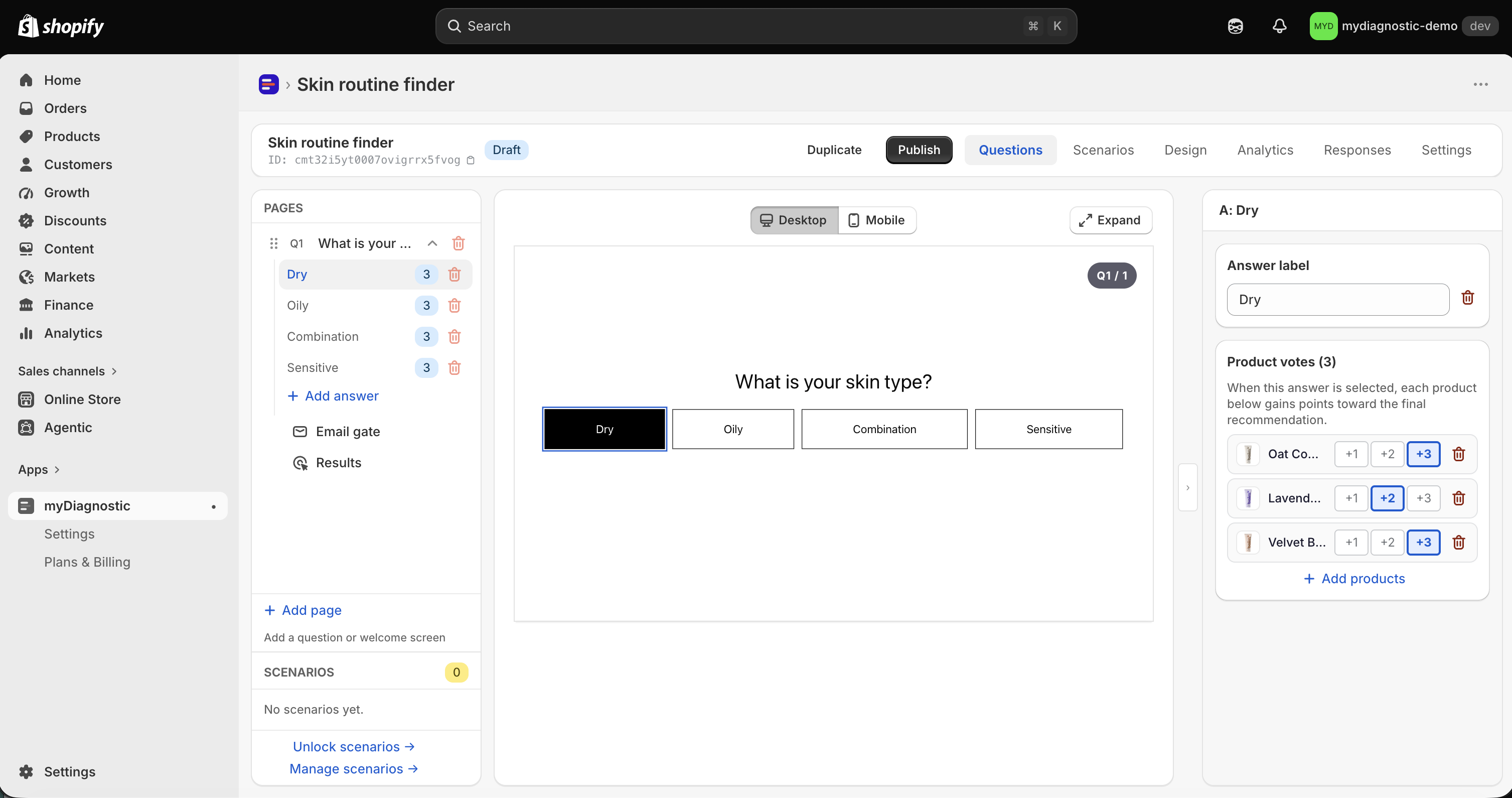
Choose a weight
The three weights are worth what their labels say. A product on +3 gains three times what a product on +1 gains from the same answer, and a product on +2 gains twice as much.
Leave every product on +1 when the answer says the same thing about each of them. Raise a product to +2 or +3 when that answer is a strong signal for it in particular, and the distance you set is the distance the customer's other answers have to make up.
Points add up. A product attached to several answers collects the weight of each of those answers the customer selects, whether they belong to different questions or to the same multiple choice question. So the same product carrying +1 on three selected answers ends level with a product carrying +3 on one.
Exclude products with an answer
An excluding answer does the opposite of a vote: it takes its products out of the running.
- Select the answer in the left sidebar.
- Turn on This answer excludes products in the Exclusion mode section.
- Select Add products and pick the products to rule out.
- Select Save.
The checkbox carries the help text When selected, the linked products are removed from results instead of gaining votes. The products section is then titled Excluded products, followed by its count, and reads When this answer is selected, each product below is removed from the results, whatever votes it collected elsewhere.
The weight buttons disappear from the rows, because an excluded product collects no points. The weights you had set are kept: turn the checkbox off and they come back as they were.
Exclusion always wins. A product ruled out by one selected answer is gone whatever it scored elsewhere, and nothing brings it back: not a higher score from another answer, not a scenario. Use it for what genuinely never fits, an allergy or a contraindication, rather than as a way to nudge the ranking.
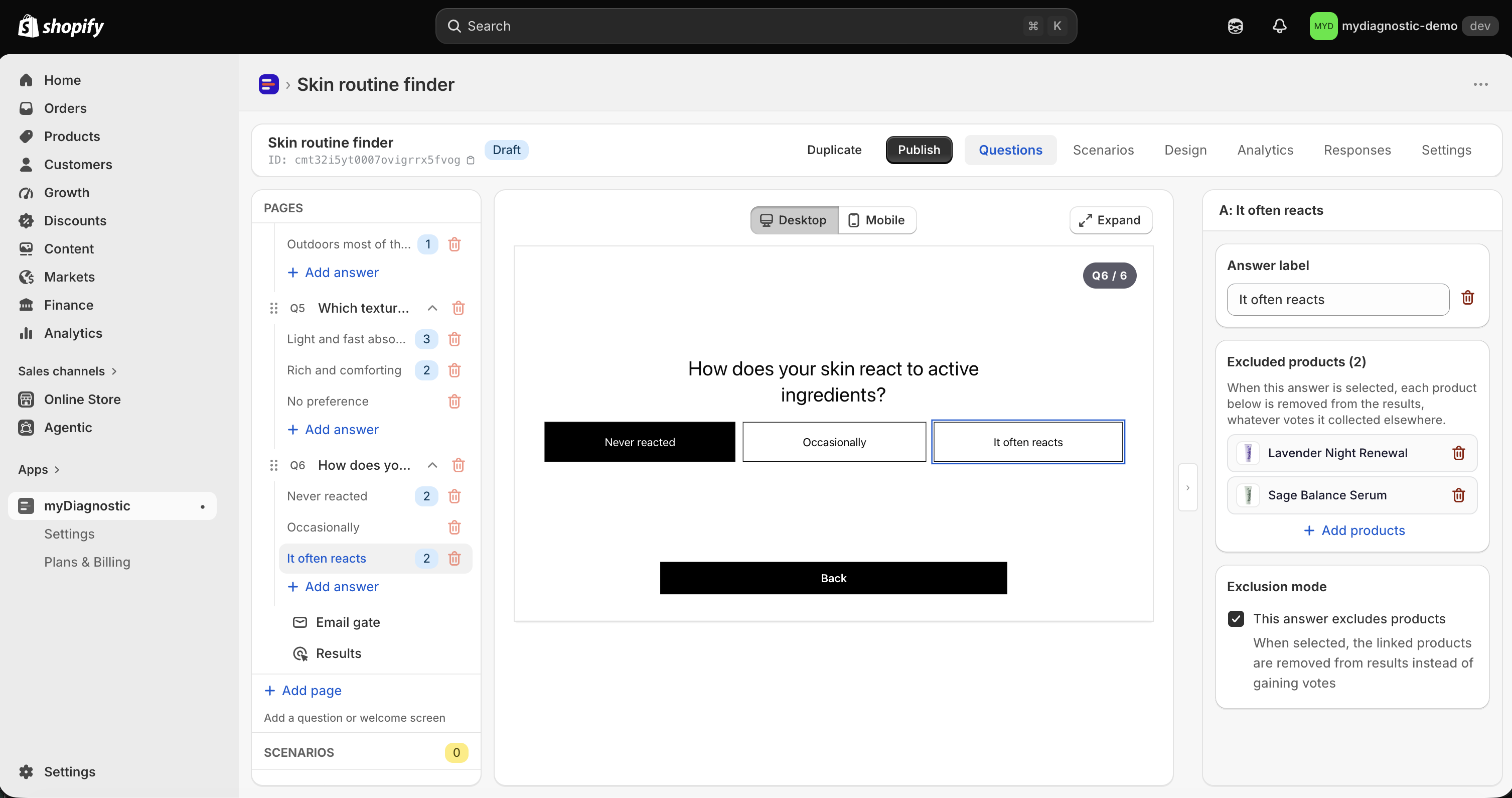
How the quiz picks the three products
The whole calculation runs in the customer's browser, the moment they answer the last question, in this order:
- Every selected answer adds its weight to each product it votes for.
- Every product ruled out by a selected excluding answer is removed, whatever its points.
- The three products left with the most points are the result.
- Those three are matched against your scenarios, and a scenario is shown only when it holds exactly those three products, see Result scenarios.
Removing an excluded product before the count is what makes exclusion absolute, and it promotes the next product by points into the trio.
When two products are level
The ranking is stable. The same answers always return the same products, for every customer who reaches that combination.
When two products end on the same number of points at the edge of the trio, one of them is in and the other is out, and the quiz settles it on an internal criterion you have no control over. If which of the two wins matters, put a point between them rather than hoping: raise one to +2 on an answer they share, or give it a vote on an answer the other one does not carry.
When fewer than three products win
A result can be shorter than a trio. When only one or two products collect points, the customer gets a result page with one or two cards.
A scenario matches that result only if it holds the same number of products: a scenario of three products is never shown against a result of two, and a scenario of two products is shown only when the result itself holds two. The app flags that second case on the scenario, with a banner reading Incomplete trios rarely match: visitors will see the generic fallback.
When nothing is left at all, because no product collected a single point or because every product that did is excluded, there is no result page. The customer reads Quiz temporarily unavailable. Please try again., no response is recorded, and nothing counts towards your monthly total. The wording of that message is yours to change, see App wording.
What your plan changes
Votes and exclusions work on every plan, the Free plan included. Nothing about the scoring is gated: the weights, the exclusions and the trio are the same on Free as on Unlimited.
What the Free plan does not serve is the editorial layer. Scenarios are available from the Basic plan upwards, so a Free quiz works out its three products correctly and then always shows the generic result: the products the customer won, under the quiz's own result title, with no scenario description, image or tips. A trio that never seems to bring up the page you wrote is expected behaviour on Free, not a fault in your votes. See Result scenarios and Plans and quotas.
When a product is unavailable
Availability plays no part in the calculation. A product that is out of stock keeps its votes and can win a place in the trio exactly as it would in stock, so a customer can be recommended something they cannot buy today. What changes is the result card, not the ranking.
On the result page, a sold out product carries a Sold out badge over its image and keeps its price. If your result uses a button on each card, that button is disabled and reads Sold out instead of the usual add to cart label.
The bundle button follows the same rule at trio level. As long as one product in the trio is still purchasable, the button stays active and adds only the purchasable ones, with a note under it reading Sold-out items are not added to the cart. When all three are sold out, the button is disabled and reads Sold out.
A product deleted from your Shopify catalogue keeps its vote too. The app does not listen for product deletions, so nothing is removed from your answers or your scenarios on your behalf. Its card is still shown, with the title and image kept at the last save, without an add to cart button, and it is left out of the bundle. A scenario whose trio holds a deleted product still matches, so the editorial you wrote is shown with a card the customer cannot buy.
A product's title and image are only refreshed when you select that product again in the answer or in the scenario that carries it. Its price, its availability and its variant are read live from Shopify on every result, so those three are always current while the title and the image can be out of date.
The app warns you in one place: the banner above the preview on the Questions tab, titled Some recommended products cannot be added to cart, which names the products concerned. It appears nowhere else in the admin, there is no email and no notice on the quiz list, so a merchant who does not open that preview sees nothing at all. Open it after any catalogue change that touched a product a quiz recommends.
Before you publish
A quiz that cannot recommend anything, or that a customer cannot finish, is refused at publication. Publish stays disabled and its reason is readable by hovering the button.
Attach products to at least one answer that does not exclude them. If every answer carrying products excludes them, or no answer carries any, the reason reads Assign at least one product to an answer before publishing: without a product vote the result screen has nothing to show.
Give every question at least one answer. A question with none is a dead end, since the customer has nothing to select and the button that moves them on never activates, and the reason reads Every question needs at least one answer before publishing: a question with no answer cannot be completed by a visitor.