Result scenarios Basic plan and above
A scenario is a result page you write yourself, attached to a precise trio of products. By the end of this page your quiz answers its winning combinations with a title, a description, an image and tips, instead of a bare list of products.
Before you start
- A quiz whose answers already vote for products, see Product matching.
- A store on the Basic plan or above.
What a scenario is
A scenario carries a title, a description, a desktop and a mobile image, a list of tips, and the products it recommends, each with an optional label. When a customer finishes the quiz and their winning products are exactly the products of a scenario, that scenario is the result page they see.
That is what a scenario is for: the quiz works out which products fit, and the scenario turns that list into a recommendation in your own words. The customer reads why these products were chosen and how to use them together, rather than three product cards with nothing around them.
The plan you need
Scenarios are available on the Basic plan and above. On the Free plan, the Scenarios tab shows a banner titled Editorial scenarios are available on the Basic plan and above, which reads Upgrade to unlock editorial scenarios: rich result pages with custom copy, images, and tips for each product trio. and carries an Upgrade plan button. Add scenario is disabled, with the tooltip Scenario limit reached for your plan.
From Basic upwards there is no limit on the number of scenarios a quiz can hold. The plan decides whether scenarios are available at all, not how many you write.
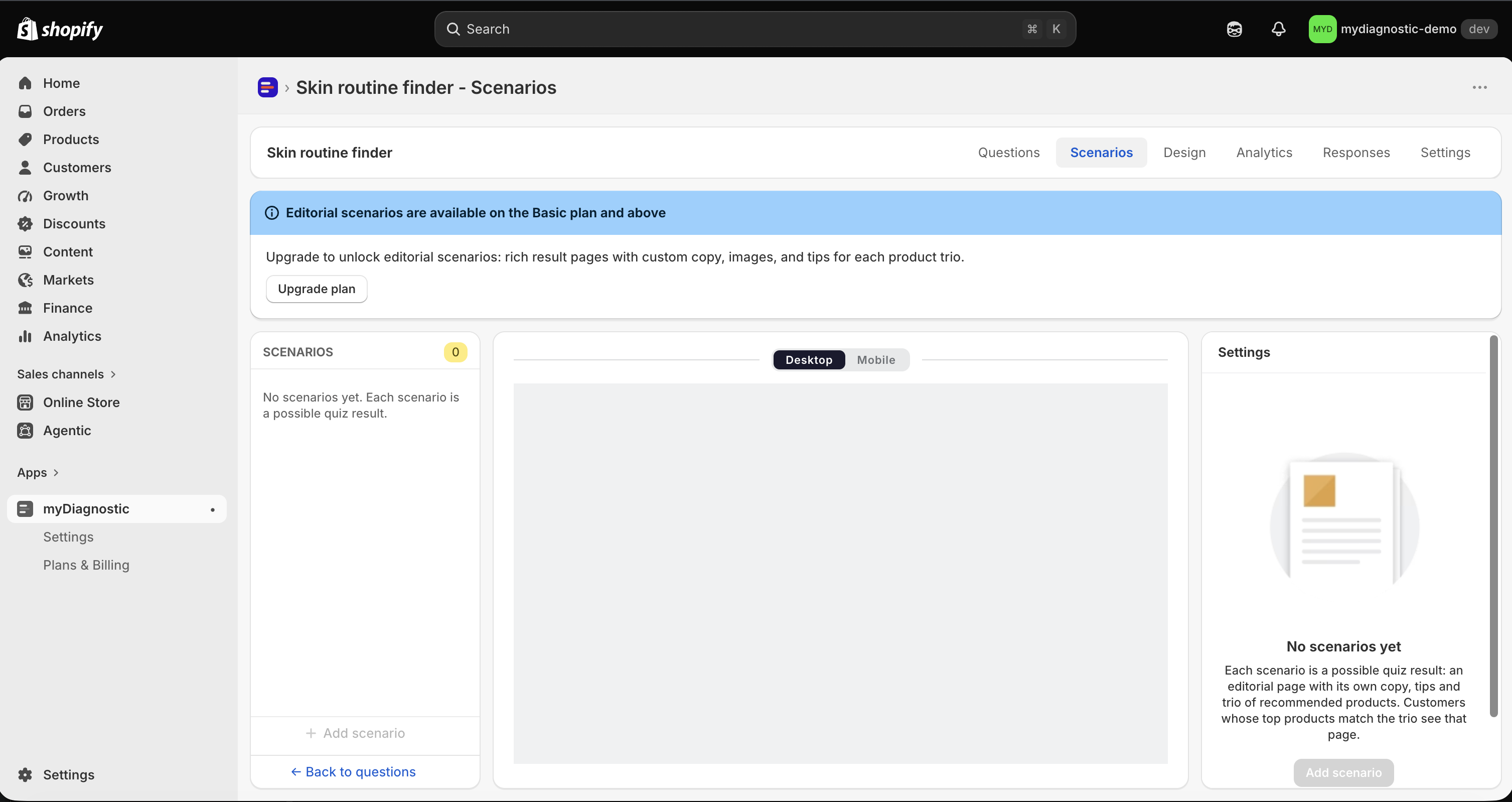
Create a scenario
- Open the quiz and select its Scenarios tab.
- Select Add scenario at the bottom of the left sidebar.
The Questions tab offers the same from its own sidebar: its SCENARIOS section carries an Add scenario button and a Manage scenarios → button that opens the tab. On the Free plan that first button reads Unlock scenarios → and opens the page where you change plans instead.
A new scenario arrives named New scenario, at the end of the list, with no description, no tip, no product and no image. It is written to the quiz straight away, which is why Add scenario is disabled while you have unsaved changes, with the tooltip Save or discard your changes first.
There is no way to duplicate a single scenario. Duplicating the quiz copies all of them, along with the rest of the quiz.
Write the scenario
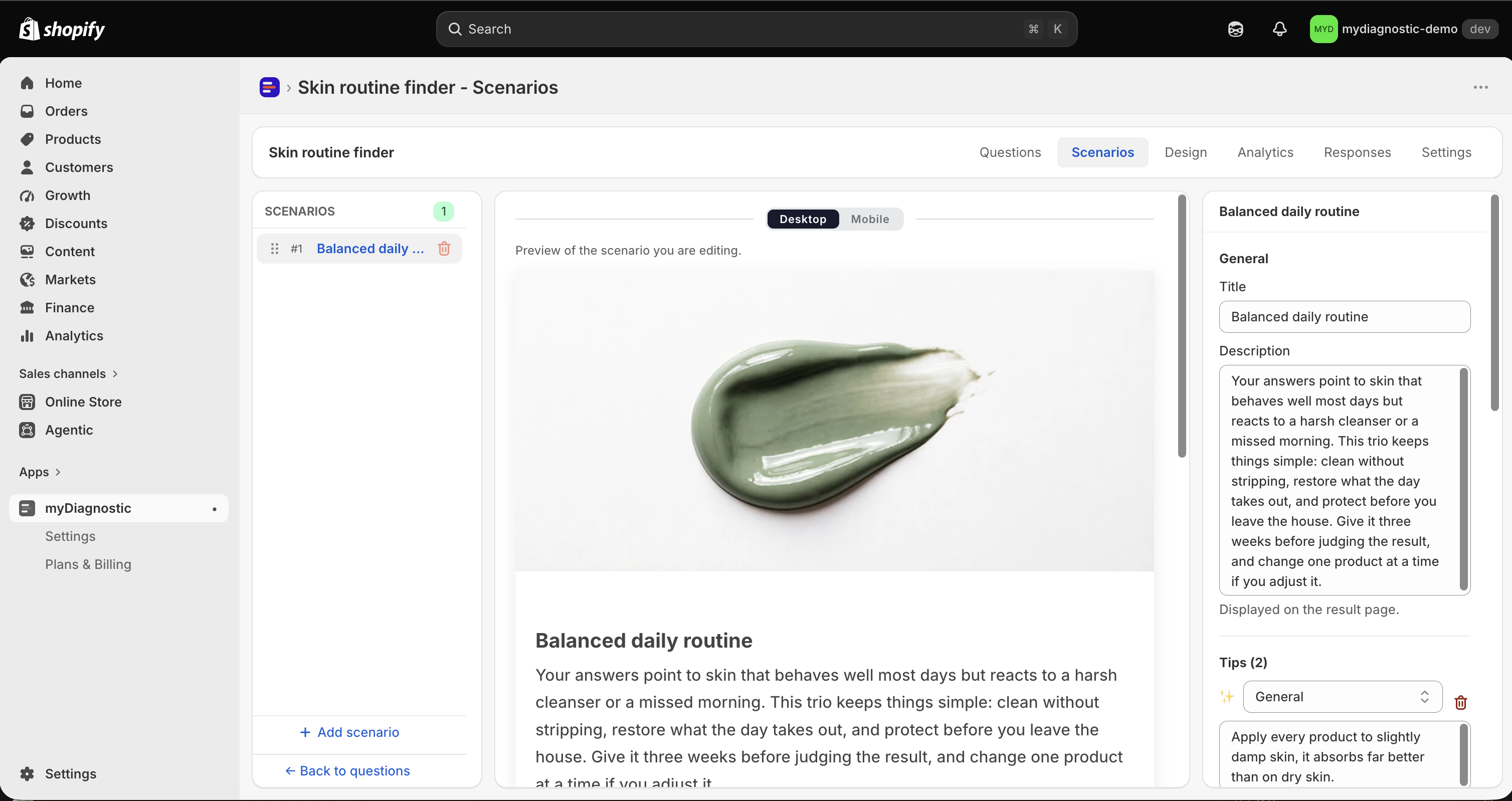
Select the scenario in the left sidebar. Its settings open in the panel on the right, in four sections.
General holds the Title and the Description. The title heads the editorial part of the result page, and the description is the narrative under it. The description's help text states where it lands: Displayed on the result page.
Tips holds the short pieces of advice listed under the description. Select Add tip to add one: it arrives reading New tip. Each tip carries a text and one of three icons, General, Morning or Evening, and the icon is printed next to the text on the result page.
Products holds the products this scenario recommends. Select Add product to pick them in the Shopify product picker. Each product row ends with a label field, whose placeholder reads Custom label: the label is printed above the product's name on its card, and is how a trio tells the customer which product plays which role.
Images holds Desktop image, with the help text Shown on screens wider than 768 px, and Mobile image, with the help text Falls back to desktop image if empty. The image illustrates the result page, above the scenario's title.
No field has a length limit, and there is no limit on the number of tips. Write what the recommendation needs.
Everything in this panel is held until you save it. A bar appears at the top of the screen as soon as something changes, one Save writes every pending change on the tab at once, and Discard reverts them all.
The trio
This is the section that decides whether your scenario is ever shown, so read it before writing a dozen scenarios.
When the customer answers the last question, the quiz counts the votes their answers gave and keeps the three products with the most votes. A scenario is shown only when its products are exactly those three: the same products, and the same number of products. A close match does not count. Sharing two products out of three does not count. Either the two lists are identical, or the scenario stays unused.
Three consequences follow:
- A scenario carrying four products or more is never shown. The quiz never designates more than three winners, so its list can never equal the scenario's.
- A scenario carrying one or two products is shown only when the quiz itself designates one or two winners, which happens only when fewer than three products collected votes. In a quiz with products attached to its answers, that is rare.
- Two scenarios carrying the same products are both a match, and the order of the list breaks the tie, see the reordering section below.
The app warns you about the second case: a scenario holding fewer than three products shows a banner reading Incomplete trios rarely match: visitors will see the generic fallback.
So compose one scenario per combination the quiz can actually produce. Which combinations those are follows from the votes and exclusions on your answers, see Product matching: work out which trios your answers can realistically bring to the top, and write a scenario for each of those, rather than for every trio your catalogue could theoretically form.
When no scenario matches
The customer still gets their result. The page shows the quiz's generic result title and subtitle, and the products their answers picked, laid out by your result screen settings. What is missing is everything a scenario would have added: no description, no tips, no image.
This is the normal behaviour of the quiz, not an error. Every combination you did not write a scenario for ends here, and the response is still recorded, as a generic result.
Reorder the scenarios
Drag a scenario by the handle at the start of its row, which carries the tooltip Drag to reorder, and drop it where you want in the list. The new order is held by the save bar like any other change: select Save to write it.
The order has one effect. If two scenarios carry the same products, the one higher in the list is the one shown. In every other case the order changes nothing for the customer: the trio selects the scenario, not its position.
Translate a scenario
Once your quiz serves a second language, language tabs appear on the scenario's title and description, on the text of each tip, and on the label of each product. The icon of a tip is not translated: you pick it once for every language. Translations are held and written by the same Save as the rest of the scenario. Adding a language to the quiz is covered in Secondary languages.
Delete a scenario
Select the trash icon on the scenario's row in the left sidebar. The icon does nothing while you have unsaved changes, with the tooltip Save or discard your changes first: save or discard, then delete.
The confirmation is titled with the scenario's name and reads Its product trio, tips and translations will be deleted with it. and Recorded quiz responses are kept and will show as generic results. Confirm with Delete scenario.
The second sentence is the part to weigh before confirming: customers who already reached this scenario keep their recorded response, and it now displays as a generic result, without the editorial they originally saw.
If your plan drops below Basic
Your scenarios are kept. They stay listed on the Scenarios tab with all their content, you can still edit them, and nothing is deleted.
What changes is what the customer sees. Scenarios are no longer served on your online store, so every customer who finishes the quiz gets the generic result: their products, without any scenario editorial. One exception: result links already sent by email keep showing their scenario. That content was already delivered to its customer, and the plan gates the production of new results, not the reading of old ones.
Move back to Basic or above and your scenarios are served again exactly as they were. There is nothing to reconfigure.