App wording
Some of the text a customer reads in a quiz is written by you, and some of it is supplied by the app. App wording is where you rewrite the second kind, so a button reads in your words rather than in ours, in every quiz of your store.
Before you start
- A quiz in your store, since the languages this card offers are the ones your quizzes use.
What app wording is
Two kinds of text meet on the same screen.
Content is what you write: the title of the welcome screen, the questions, the answers, the copy of a scenario. You edit it in the quiz, and no default of ours ever replaces it.
App wording is what the app supplies so that a quiz works before you have written anything: the Start button, Next and Back, the message under an invalid email address, Sold out on a product nobody can buy, the subject of the result email. Each of those has a value in every language the app ships, and this card is where you replace it.
Two reasons to replace one. Your store says something else, a bag rather than a cart. Or our translation into a language you sell in does not fit your market.
Where to edit it
- Open the app.
- Select Settings in the app navigation.
- Scroll to the App wording card, the fourth one on the page, under Result email.
- Change any field, then select Save.
The card states its own scope: Applies to every quiz in your store. There is no per quiz version of it. Change Next button here and every quiz you run says it, which is what makes this the right place for brand vocabulary and the wrong place for something one quiz needs.
Each field takes up to 500 characters.
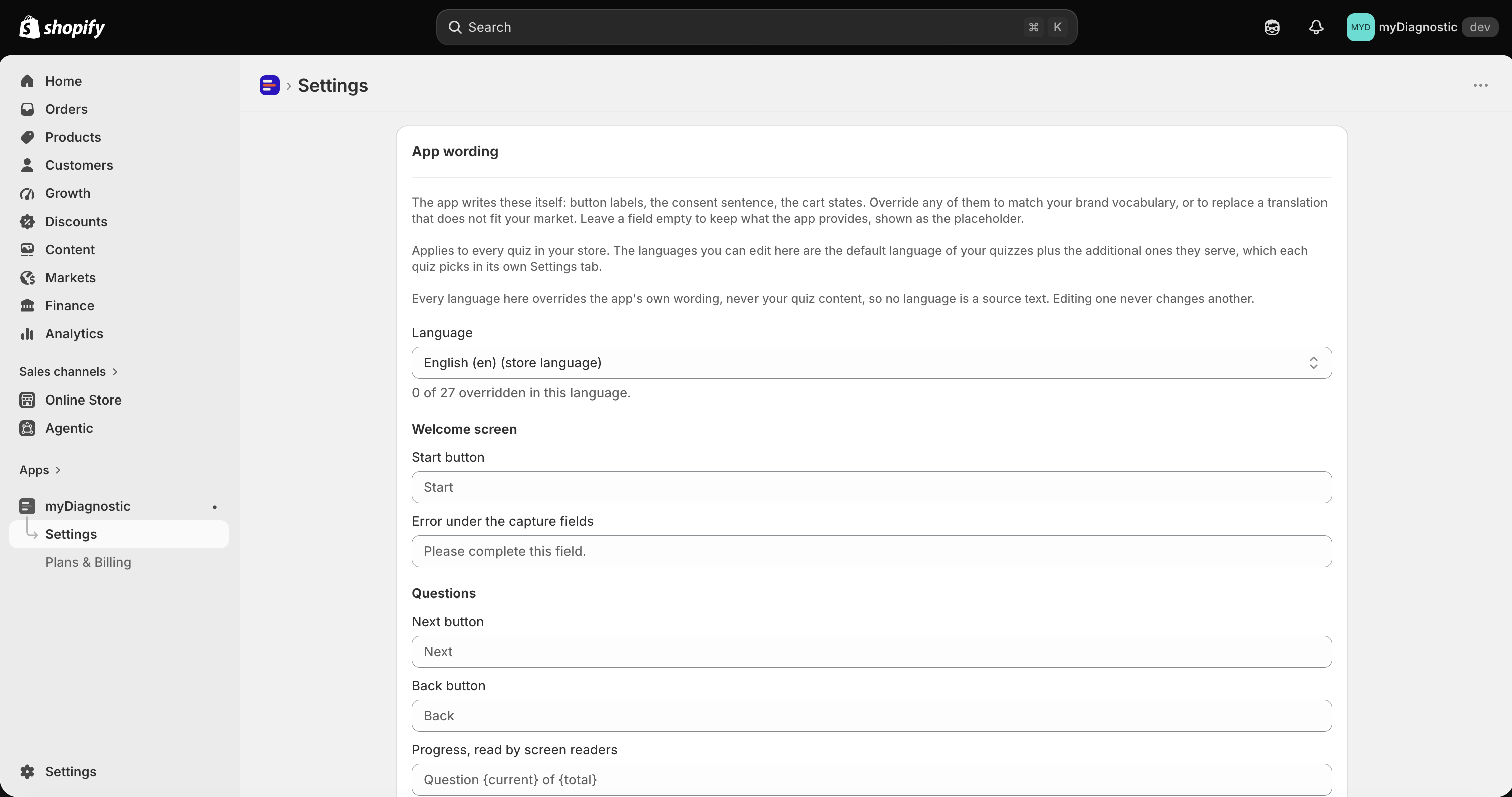
What each group covers
The fields are grouped by the screen the customer is on when they read them. Six groups, in this order.
Welcome screen holds Start button and Error under the capture fields.
Questions holds Next button, Back button and Progress, read by screen readers, the last of which is announced by a screen reader rather than shown.
Email capture holds Title, Subtitle, Submit button, Email field placeholder, Invalid email message, Marketing consent sentence and Note below the field. The last two exist nowhere else: every other field in this group can also be set on the email gate page of one quiz, but the consent sentence and the note under the field are only ever set here.
Result screen and cart holds Bundle add-to-cart button, Product add-to-cart button, Added confirmation, View-cart link, Sold-out button, Bundle note when an item is sold out and Add-to-cart failure. Sold-out button is worth knowing about: it names both the badge over a sold out product and the disabled button on its card, so one field changes both.
Errors shown to the visitor holds Quiz unavailable and Result not found.
Result email holds Subject, with the quiz name, Subject, without a quiz name, Button, Footer sentence, Privacy policy link and Terms link.
Four of these fields carry a name in braces, which the app replaces with a value as it renders:
{current} and {total} in the progress announcement, {quiz} in the subject that names the quiz,
and {shop} in the footer sentence. Keep the braces and their spelling when you rewrite one of
those. A name the app does not recognise renders as nothing at all, so a subject written as
Your results for {quizz} reaches your customer as Your results for.
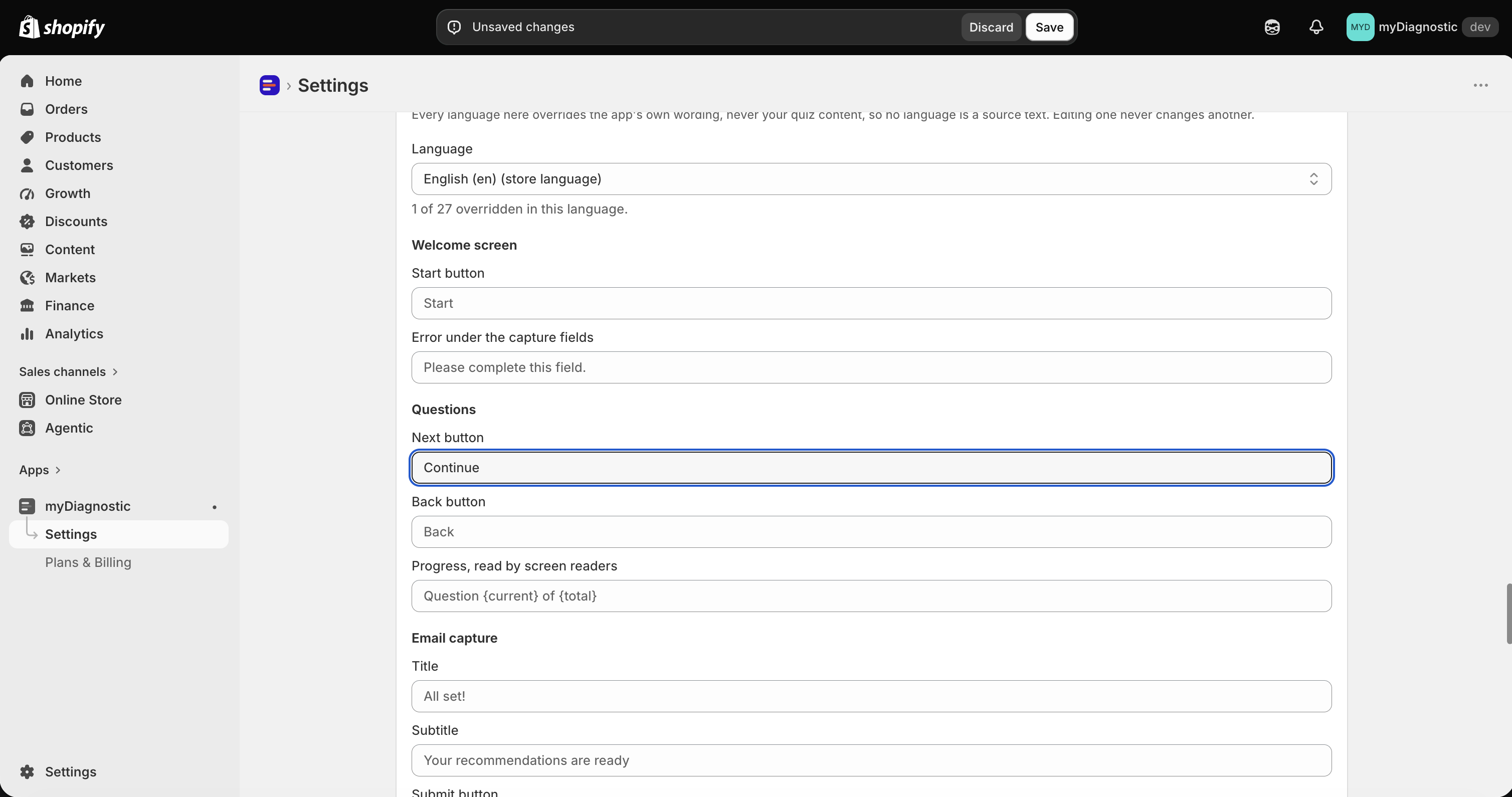
What the placeholder shows, and what an empty field means
Every field arrives empty, and its placeholder is the value the app uses right now, in the language you are editing. Switch the language and the placeholders switch with it, so you always read the text you are about to replace rather than its English equivalent.
An empty field is not a missing value: it means the app default applies, which the card puts as Leave a field empty to keep what the app provides, shown as the placeholder.
To go back to the app default, clear the field and select Save. Your override is removed rather than stored as blank text, and the placeholder returns. Nothing on a customer's screen is ever left empty by clearing a field here.
The line above the groups counts what you have changed, as 1 of 27 overridden in this language, which is the quickest way to see whether a language has been worked on at all.
Which text wins
A button label can be set in more than one place, and the app resolves them in a fixed order. For a string that a quiz page can also carry, the full chain is:
- The text written on the page, translated into the language the customer is browsing in.
- The text written on the page, in the quiz's default language.
- Your App wording override, in the language the customer is browsing in.
- The app's own wording in that language.
- The app's own wording in English.
The first level that holds something wins, and a level that is empty is skipped rather than rendered, so an empty field never reaches a customer as a blank button.
The practical form of that rule is short: a text set on a page beats App wording. The start button of a welcome screen carries a Button text field of its own, and while that field holds something, it is what the customer reads. Empty it and the button falls back to what you set here. The same goes for the title, subtitle, button, placeholder and error of an email gate.
Two groups behave slightly differently. Marketing consent sentence and Note below the field have no per quiz field at all, so this card is the only place that decides them. And in the Result email group, a subject or a button label written in the Result email card of the same Settings page wins over the wording set here, see Result email.
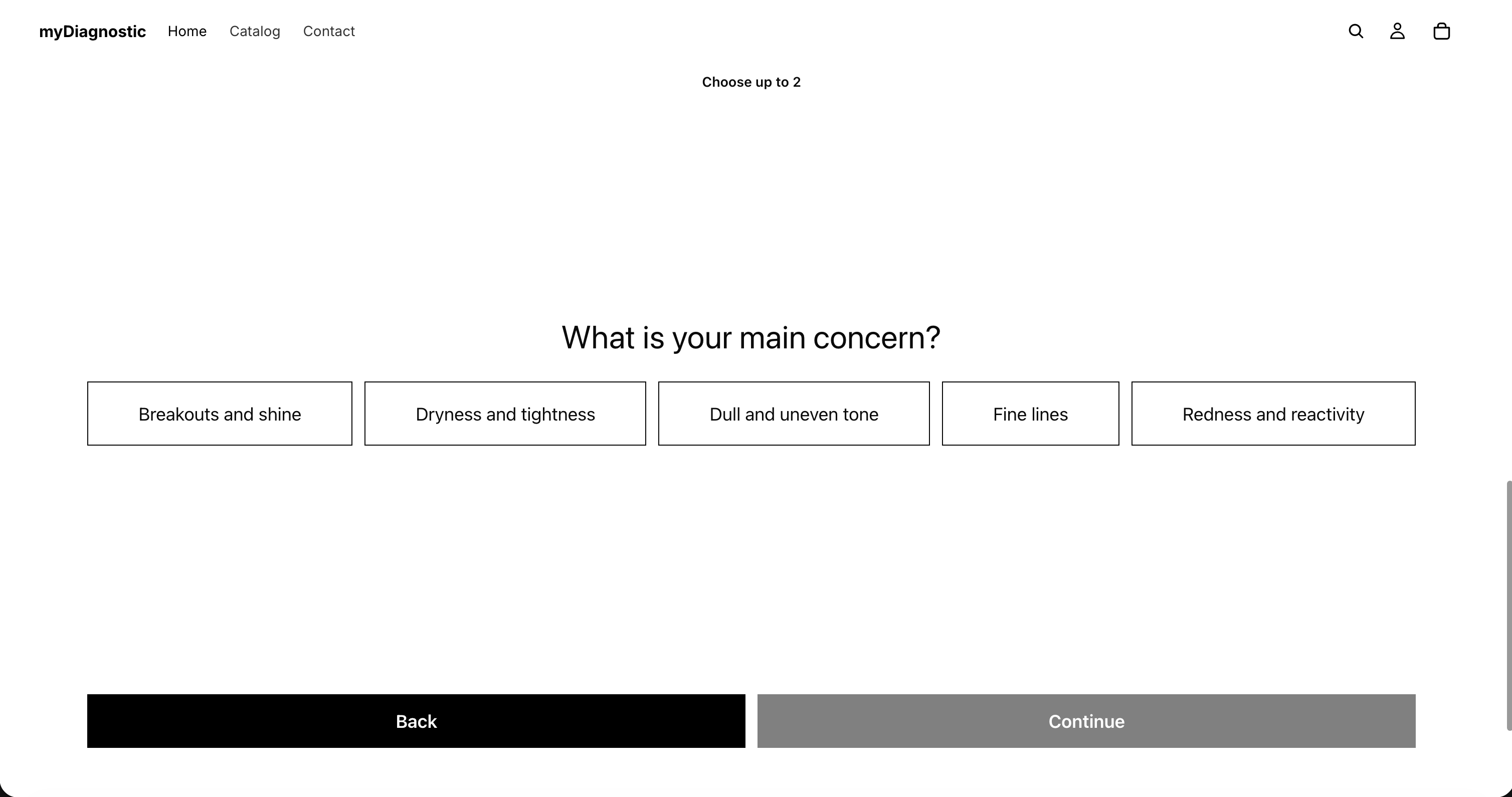
Edit another language
The Language select at the top of the card decides which language you are writing. Your store's own language is marked (store language) and the card opens on it.
Which languages appear depends on your quizzes. The default language of any quiz is editable on every plan, Free included, since writing your own vocabulary is not a translation feature. The additional languages a quiz serves appear here once your plan serves them, from Premium upwards, see Secondary languages.
Each language stands alone. The card says so: Every language here overrides the app's own wording, never your quiz content, so no language is a source text. Editing one never changes another. A customer browsing in a language you have not overridden reads the app's own wording in their language, and English only if the app ships nothing for it. So overriding Next button in English leaves your French customers on the app's French label, which is usually what you want, and a reason to check each language you serve after a vocabulary change.
What you cannot change here
Two pieces of text a customer can see are out of reach of this card.
- The Powered by myDiagnostic badge under the quiz. It is not wording you can edit. It appears on the Free plan and disappears on Basic and above, see Plans and quotas.
- The message shown when the quiz never loaded at all. Your overrides travel with the quiz, so a block that received nothing has nothing to read them from and falls back to a built-in sentence in the customer's language. Quiz unavailable covers the other case, where the quiz did load and then stopped accepting answers.
Everything else a customer reads is content, and it is edited where it is written: the questions and answers in the quiz, the welcome copy and the labels of your capture fields on the welcome screen, the editorial text and the tips in a scenario, the product titles and prices in Shopify.
Save and discard
The App wording card shares the save controls of the whole Settings page. Save writes every card at once, including the languages you edited here, and Discard puts the page back to its last saved state. Leaving the page with unsaved changes asks you to confirm first.