Result email
A quiz can email a customer their recommendation as soon as they finish it, with a link that takes them back to the same result later. By the end of this page yours is switched on, worded in your words, and checked in a real inbox before a customer receives one.
Before you start
- A quiz with its email gate enabled, since that is the screen that collects the address.
- Access to the app Settings page, where the email itself is set up.
Turn sending on
Sending is decided per quiz, and it is not gated by plan.
- Open the quiz and select its Settings tab.
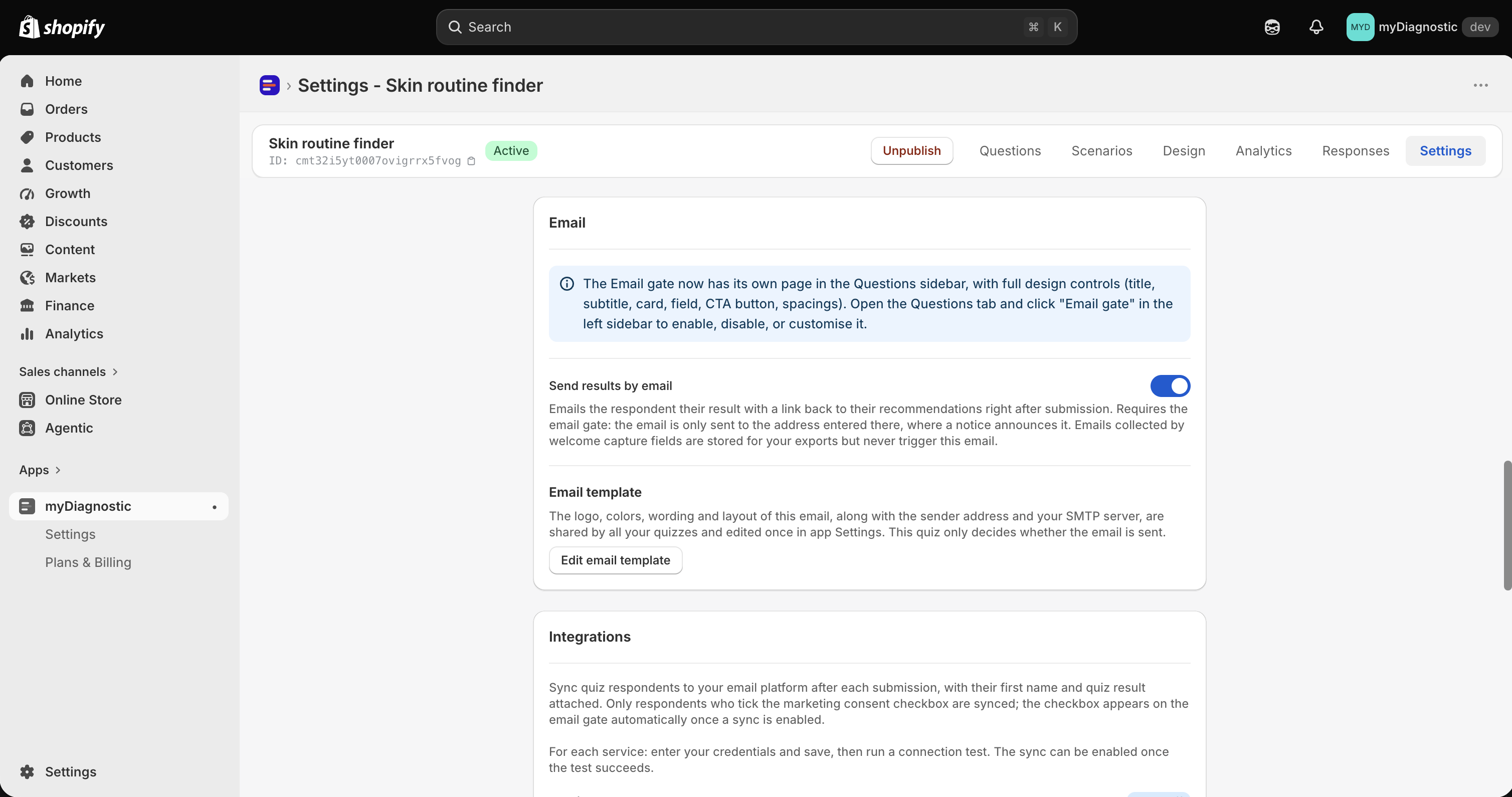
- Turn on Send results by email.
- Select Save.
The toggle states its own condition: Requires the email gate: the email is only sent to the address entered there, where a notice announces it. Emails collected by welcome capture fields are stored for your exports but never trigger this email.
That is the whole trigger. An email goes out when the quiz has this toggle on, the quiz has its email gate enabled, and the customer entered an address at that gate. It is sent once, at the moment the response is recorded.
The address is the one typed at the gate. A quiz can also collect an email through a capture field on its welcome screen, and that address is kept in your responses and your export, but it never receives this email. The gate is the only screen that shows the customer the consent sentence and the notice that a result is coming, so it is the only address the app treats as agreed to.
That notice under the email field appears as soon as this toggle is on. Its wording is Note below the field in the App wording card, see App wording.
Where the email is set up
The email itself is shared by every quiz in your store, so it is edited in one place.
- Open the app.
- Select Settings in the app navigation.
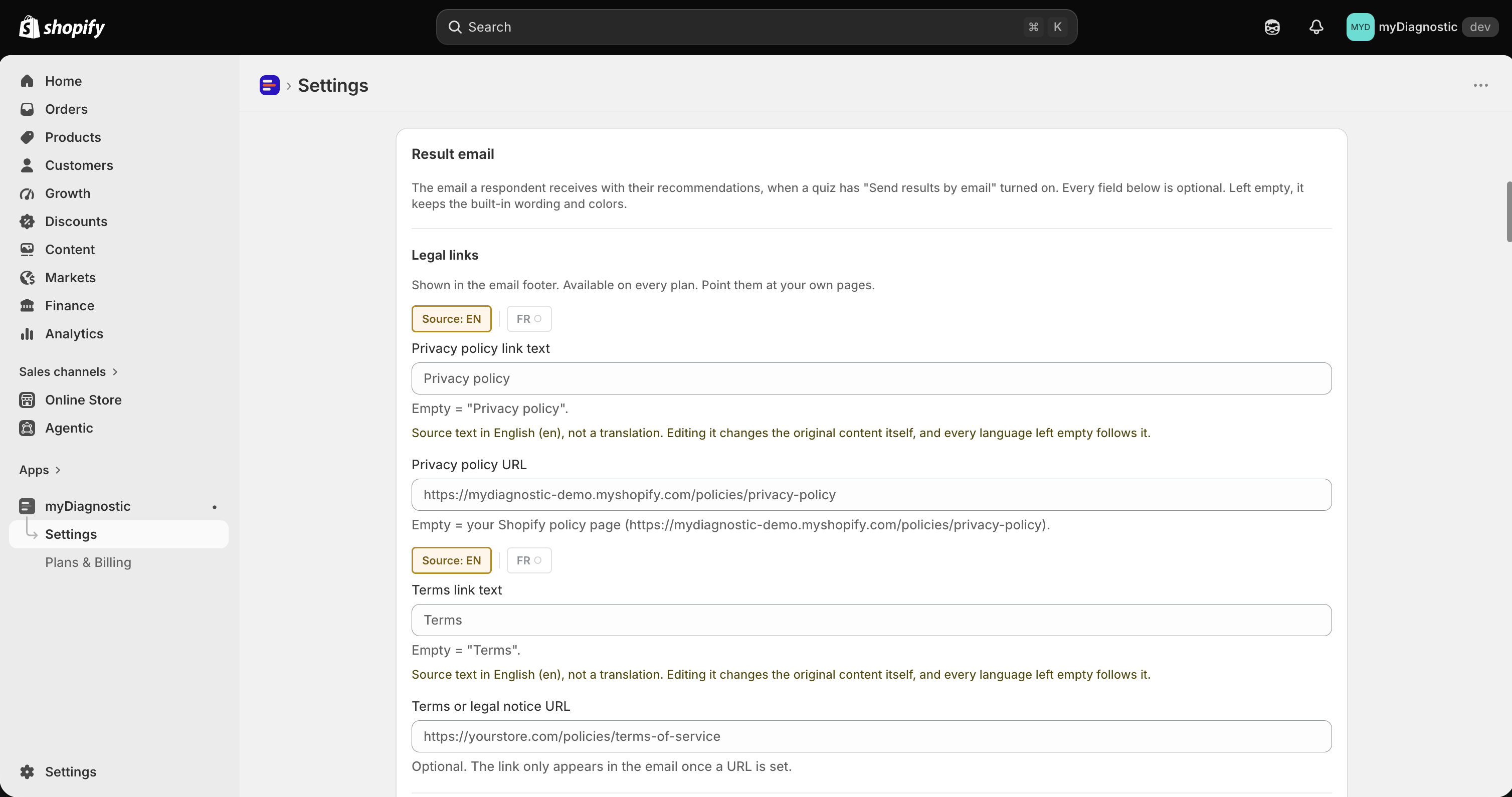
- Scroll to the Result email card, or use the Edit email template button on any quiz's Settings tab, which lands you on it.
The card opens with a reminder that everything in it is optional: Every field below is optional. Left empty, it keeps the built-in wording and colors.
Who the message comes from is a separate card, Email sending, above it. Sender name and Sender email address apply to result emails and app notifications alike. Without a mail server of your own, the app sends the message and your address is used as the reply address rather than as the sender. Sending through your own server is available from Pro upwards, in the same card, under Use your own SMTP server, see Send with your own mail server.
Available on every plan
Two links in the email footer are yours to set whatever you pay, in the Legal links section: Privacy policy link text, Privacy policy URL, Terms link text and Terms or legal notice URL. Leave the privacy URL empty and the app points at your Shopify policy page. The terms link appears only once you set a URL for it. Pointing customers at your own legal pages is not something a plan should decide, which is why these four sit outside the branding gate.
The address the app writes to you at is also free of any gate. It lives in the Notifications card, in Notification email.
Logo, colours and wording Pro plan and above
The rest of the card needs Pro or above. On Free and Basic you see one heading, Logo, colors and wording, and a banner in place of the fields. Anything you saved on a higher plan is kept, so a downgrade does not lose your work: emails go out with the standard template until you upgrade again, and the preview says as much under it.
On Pro and above the card holds four blocks.
Logo takes Email logo, an upload shown above the title, and Maximum logo width in pixels.
Colors holds Button color and Background color. Both start on a default rather than a value: the button follows the accent colour of the quiz that sent the email, so the message matches the screen the customer came from.
Wording holds Subject line, Intro text, Button label and Footer text. Each one falls back to the app's own wording when you leave it empty, and the grey placeholder shows what that is. The title and the subtitle of the email are not here: they are the ones written on the quiz result page, see Result screen.
Those fields accept variables in braces, which the app replaces as it sends: {name}, {age},
{email}, {quiz} for the quiz name, {shop} for your domain, and {custom.field} for any capture
field. A variable with no value disappears along with the punctuation next to it, so Hi {name},
reaches a customer whose name you never asked for as Hi.
Layout and formatting holds the spacing, sizes and alignment, in seven sections you open one at a time: Container, Logo, Title, subtitle and intro, Scenario block, Product cards, Button and Footer. Each of the last five can also be hidden entirely. Reset to default at the top of the block puts the whole layout back.
Why the email looks plainer than the quiz
A quiz runs in a browser. An email runs in whatever the customer opens it with, and mail clients support far less: no web fonts, no gradients, no shadows, and layouts built out of tables rather than the techniques a browser has had for a decade. A design that looks right in the app would arrive broken in a real inbox, in a way you could not see from here.
So the template is deliberately restricted, and the controls say where the limits are. The width control notes that 600px is the safe width for most mail clients. The font list offers Only fonts already installed on the reader's device. Web fonts are stripped by Gmail and ignored by Outlook. Set your brand font on the quiz, and accept a close relative in the email.
What the customer receives
The message carries your logo, the title and subtitle of the result, your intro paragraph if you wrote one, the editorial text of the scenario their answers matched, the recommended products with their prices, a button, and your footer with the legal links under it.
The button is labelled by Button label and opens the customer's own result page, the same recommendation they saw at the end of the quiz. That link does not expire. It keeps working as long as the response exists, which is what makes the email worth sending at all: a customer who closed the tab can come back to their products weeks later.
Two things change it over time. Personal data is scrubbed from responses after two years, and from a response a customer asked you to erase, so the link still opens the recommendation while the details that named them are gone. And a link that has been edited or truncated matches no response at all, which opens a short page reading Result not found, whose wording you can change in the App wording card.
Check it before a customer does
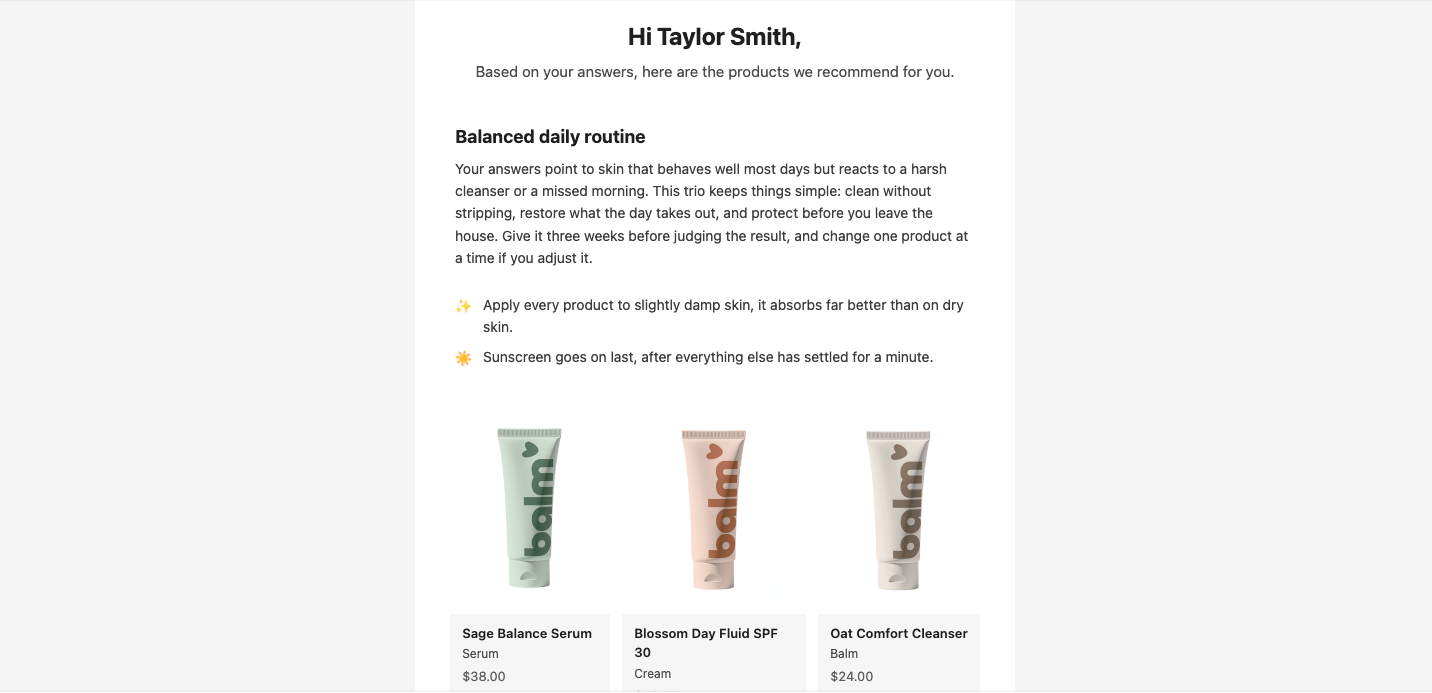
The bottom of the card holds a live preview and a test send, both built by the same code that sends the real thing, so what you read is what goes out.
The preview shows the subject above the message. It does not repaint on every keystroke: when your edits are ahead of it, a note reads Not showing your latest edits and Refresh preview brings it up to date.
To put it in a real inbox:
- Choose the language in Language, which drives the preview and the test alike.
- Enter an address in Send to.
- Select Send test email.
The test goes out through your configured sender, with [Test] in front of the subject, and it includes changes you have not saved yet, so you can try wording before committing to it. It carries sample content rather than a real response: a customer named Taylor, three sample products and a placeholder scenario paragraph. The button in a test email points at a sample link rather than a real result page, so do not judge the link from it. Wait about fifteen seconds between two tests.
A customer receives the email in the language they took the quiz in, whatever language you previewed.
Notifications
Notifications, the card above, is not about your customers. It is where the app writes to you about your store, which today means the summary sent when a customer requests their personal data.
Set the address in Notification email. Left empty, the app writes to the account that installed it. See Data and privacy for what those requests involve.
When sending fails
A failed email never reaches the customer's screen. Sending happens after the response is recorded and never blocks it, so the customer sees their recommendation, the response is in your Responses tab, and the products are the same whether or not the message went out.
The cost is that a failure is quiet. The app records the failure on its own side, without any of the customer's personal data in it, and there is no delivery column in the admin: nothing in Responses tells you an address bounced. Nor is the message sent a second time.
That makes the test send worth using whenever you change your sender or your mail server, since it is the one place a delivery problem is reported back to you: a failed test answers with the reason in a red banner rather than failing silently.