Klaviyo and Mailchimp Pro plan and above
A quiz can push the customers who agreed to hear from you straight into your email platform, tagged with the result they got. By the end of this page one of your quizzes is connected, tested, and syncing the right people.
Both integrations need the Pro plan or above, and both are set up per quiz: two quizzes can feed two different lists, or one can sync while the other does not.
Before you start
- A quiz with its email gate enabled, since the consent that authorises the sync is collected there, see Email gate.
- From Klaviyo: a private API key with list write access, and the ID of the list to subscribe to.
- From Mailchimp: an API key, found under Account and Extras, and the ID of your audience.
Connect a service
- Open the quiz and select its Settings tab.
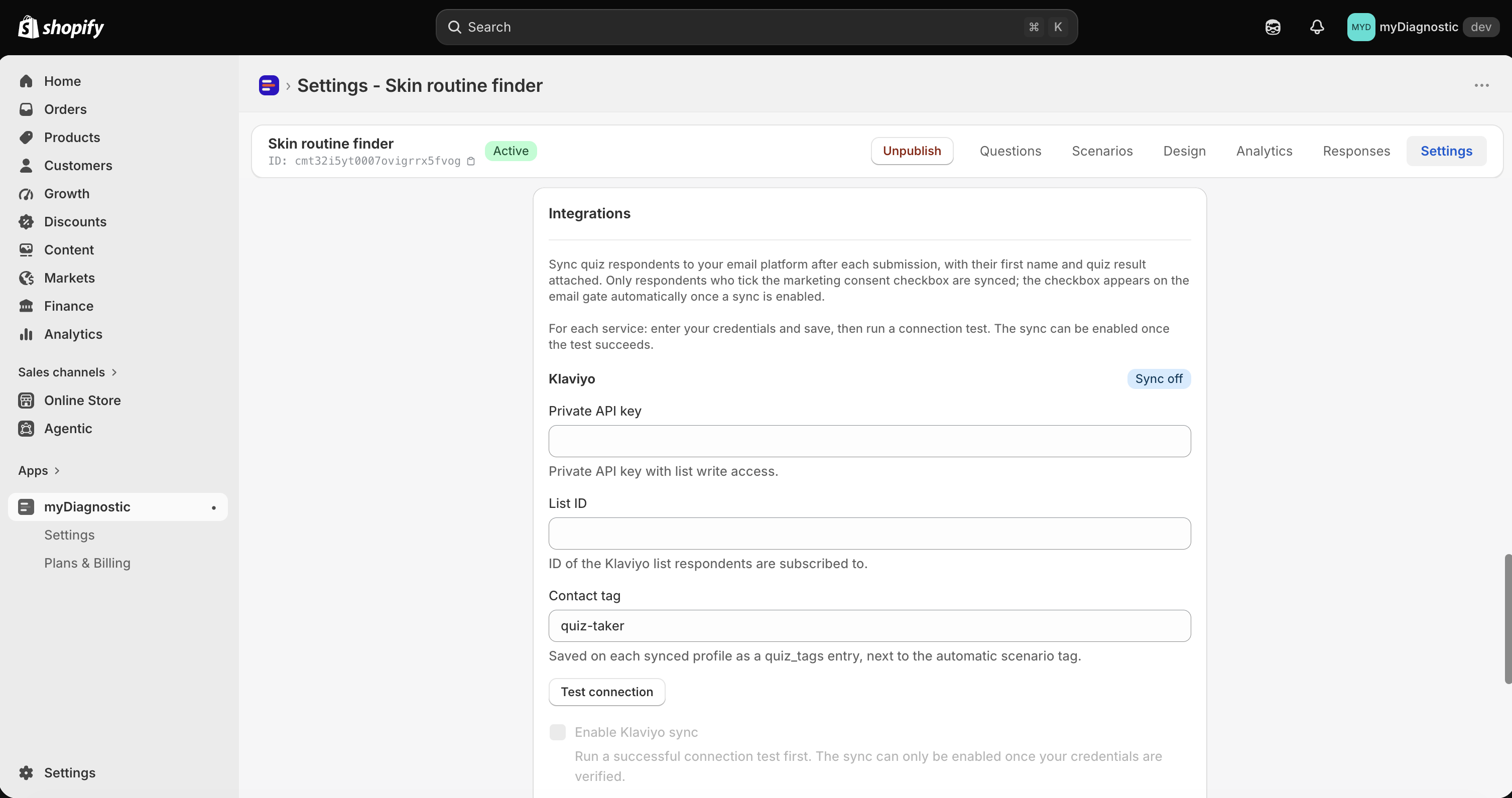
- Find the Integrations card, which holds a Klaviyo section and a Mailchimp section.
- Enter your credentials: Private API key and List ID for Klaviyo, API key and Audience ID for Mailchimp.
- Enter the Contact tag you want on the contacts this quiz sends.
- Select Save.
Each section carries a badge reading Sync off or Sync on, so the state of a service is readable without opening anything.
Your key is stored encrypted and never shown again. Once one is stored the field reads A key is stored (encrypted). Leave blank to keep it., so you can change a list or a tag without retyping the key.
Test, then switch the sync on
The card gives the order to work in: For each service: enter your credentials and save, then run a connection test. The sync can be enabled once the test succeeds.
- Select Test connection under the service you configured.
- Read the result.
- Tick Enable Klaviyo sync or Enable Mailchimp sync.
- Select Save.
A successful test confirms that the key and the list are both valid, and stamps a green Connection verified badge with its date. A failed one shows the reason the platform returned, which is usually a key without the right permission or a list that does not exist on that account. The test is read-only: it never writes a contact.
The checkbox stays disabled until a test passes, saying Run a successful connection test first. The sync can only be enabled once your credentials are verified., and the app enforces the same rule when saving. Test connection itself is disabled while you have unsaved changes, since it tests what is stored rather than what is on screen.
Change a key, a list or an audience afterwards and the verification is cleared along with the sync, so save, test again, and tick the box again. Changing only the tag leaves everything in place.
When a respondent is synced
Four things must be true at the moment a customer submits their answers:
- They ticked the consent checkbox on the email gate.
- Your store is on the Pro plan or above.
- The service is enabled on that quiz, which required a successful test.
- The key and the list are both still stored.
Miss any one of them and nothing is sent, without a warning to the customer and without the response being lost: it is recorded in your Responses tab either way.
The consent tick is the part you cannot work around. Without it the address is yours to read in the admin and never reaches Klaviyo or Mailchimp, no matter what your settings say. The checkbox itself only appears once a sync is enabled, so a quiz with no integration never asks for a permission it would not use.
The sync fires as soon as the response is recorded, at the same moment as the result email, and it never delays the customer: the result appears whether the platform answered or not.
What each platform receives
Both receive the email address, the first name if you collected one, your Contact tag, and a
second tag the app writes by itself from the result: the title of the scenario the customer matched,
lowercased and hyphenated, in the form scenario:dry-skin-routine. A result that matched no scenario
carries no second tag. Two customers who reached two different results therefore carry two different
tags, which is what lets you build a segment per result.
Beyond that the two differ, because the platforms do.
Klaviyo receives a profile carrying the quiz name, the scenario title, the recommended products, the date and the age if you collected one. Klaviyo has no per-contact tags in the version the app uses, so both tags are stored as entries of a profile property, which the app states under the field: Saved on each synced profile as a quiz_tags entry, next to the automatic scenario tag. Segment on it with a condition that matches what the property contains.
Mailchimp receives the first name and the two tags, as real tags on the contact: Added as a Mailchimp tag on each synced contact, next to the automatic scenario tag. An existing contact keeps the subscription status it already had, so a sync never re-subscribes somebody who had opted out.
When a sync fails
A failure is invisible to the customer and quiet for you. The response is recorded, the result screen appears, the result email goes out, and the platform call fails on its own. The app records the failure on its side, and nothing in the admin marks the response as unsynced.
Nothing is retried either. A contact that failed to reach the platform is not sent again later, and the customer would have to take the quiz again to be synced. So run Test connection after any change on the platform side, a rotated key, a deleted list, a closed account, rather than waiting to notice a gap in your audience.
If your plan drops below Pro
Nothing is deleted. Your keys, lists, audiences and tags stay stored, and the card replaces the two sections with a banner reading Klaviyo and Mailchimp integrations are available on the Pro plan and above. Your saved configuration is kept, but respondents are not synced on your current plan. Upgrade to bring it back.
While you are below Pro, no respondent is sent, and the consent checkbox disappears from the email gate, since the app does not ask for a permission it cannot act on. Addresses keep arriving in Responses and in your CSV export as before.
Upgrade again and the sync resumes with the configuration you had, verification included. Copying a quiz behaves differently on purpose: the copy arrives with both syncs switched off, keeping the list and the tag, and the connection has to be tested again before it can be switched back on.