Secondary languages Premium plan and above
A quiz is written in one language and can serve several. By the end of this page yours holds a second language, its content is translated where it matters, and you know which of your customers reads which version.
Additional languages need the Premium plan or above: Premium serves one per quiz, Unlimited serves as many as you add. On every plan below, a quiz serves its own language only.
Before you start
- A quiz with its questions and answers written in your own language.
- Your online store already selling in the language you want to add, since that is what decides which customer gets it.
The default language
Every quiz has one default language, chosen when the quiz is created. It is the language your content is written in, it cannot be removed, and it cannot be changed afterwards: the quiz Settings tab shows it as a line of text rather than a field, described there as Set when the quiz was created; all quiz content is written in this language and it cannot be removed.
If you picked the wrong one, create a new quiz in the right language. Everything else on this page sits on top of that choice.
Add a language
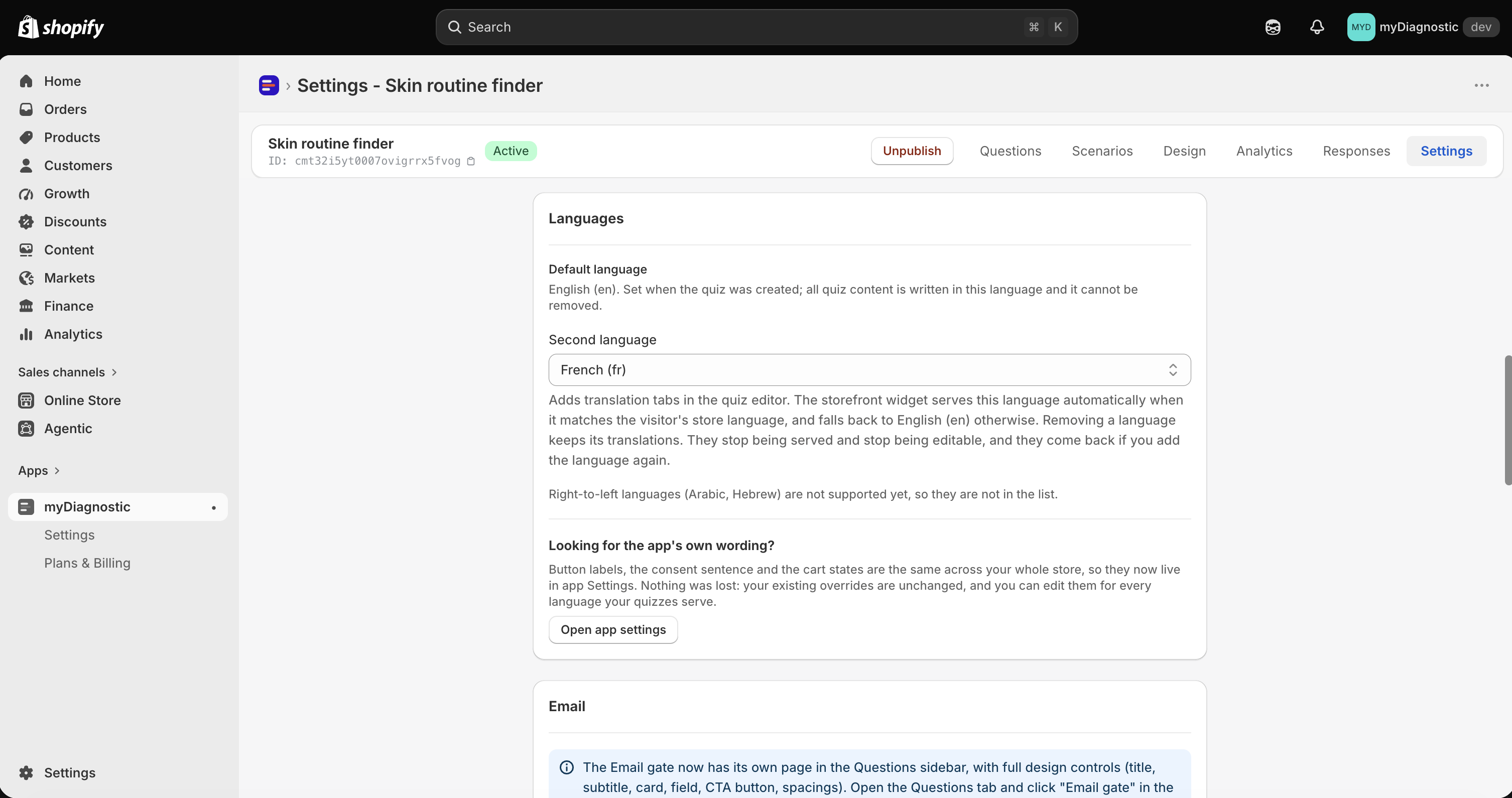
- Open the quiz and select its Settings tab.
- Find the Languages card.
- On Premium, choose the language in Second language. On Unlimited, choose it in Add a language, and repeat for each one you want.
- Select Save.
On Unlimited the languages you added appear as tags you can remove one by one. On Premium there is a single slot, and choosing another language in it replaces the one before.
Removing a language is not a deletion, which the card says: Removing a language keeps its translations. They stop being served and stop being editable, and they come back if you add the language again.
Which languages are available
The list offers twenty-eight languages, from English, French, German, Spanish, Italian and both Portuguese variants through to Japanese, Korean and both written forms of Chinese. Each entry names the language and its code, as in Portuguese, Brazil (pt-BR).
Two are missing on purpose, and the card says so: Right-to-left languages (Arabic, Hebrew) are not supported yet, so they are not in the list. The quiz, the result page and the result email all lay text out from the left, so serving Arabic or Hebrew would produce a page that reads backwards rather than a translated one. They will be offered once the layout handles them.
What has to be translated
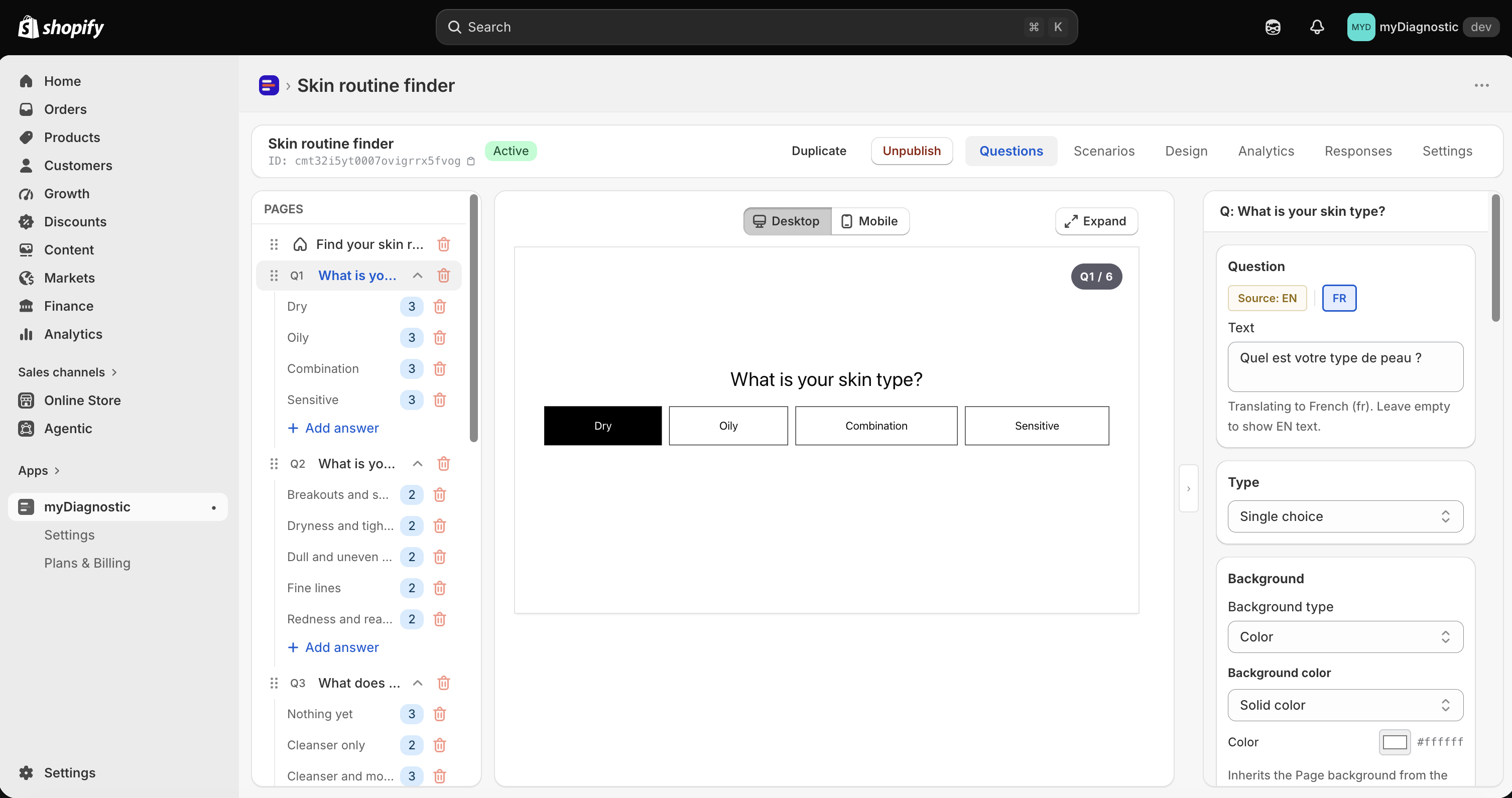
Adding a language does not translate anything. It adds a language tab next to every text field you can translate, and the work is yours to do, field by field, in the place where each text lives.
- Questions and answers, in the quiz editor, on the Questions tab.
- The copy of the welcome screen and the email gate, in the settings panel of each page.
- The result title and subtitle, and the labels of the navigation and cart buttons, on the Design tab.
- The editorial text of a scenario, its tips and the label of each product in a trio, on the Scenarios tab.
- The copy of the result email, in the app Settings, in the Result email card.
- Your overrides of the app's own wording, in the app Settings, in the App wording card, which carries its own Language select, see App wording.
Everything except the last two is per quiz. The result email and the app wording are set once for the whole store.
Write a translation
A translatable field carries a small row of language tabs above it. The first one is separated from the others and reads Source, followed by the code of the default language: it holds your original text, and a note under the field reminds you that editing it changes the original rather than a translation. The other tabs each hold one language.
- Select the language tab above the field.
- Type the translation.
- Select Save.
The chosen language is shared by the whole page, so switching a tab on one field switches every field under it. Beyond a few languages the row keeps a fixed number of tabs and moves the rest behind a disclosure, so a quiz in twenty languages stays readable.
What a customer reads
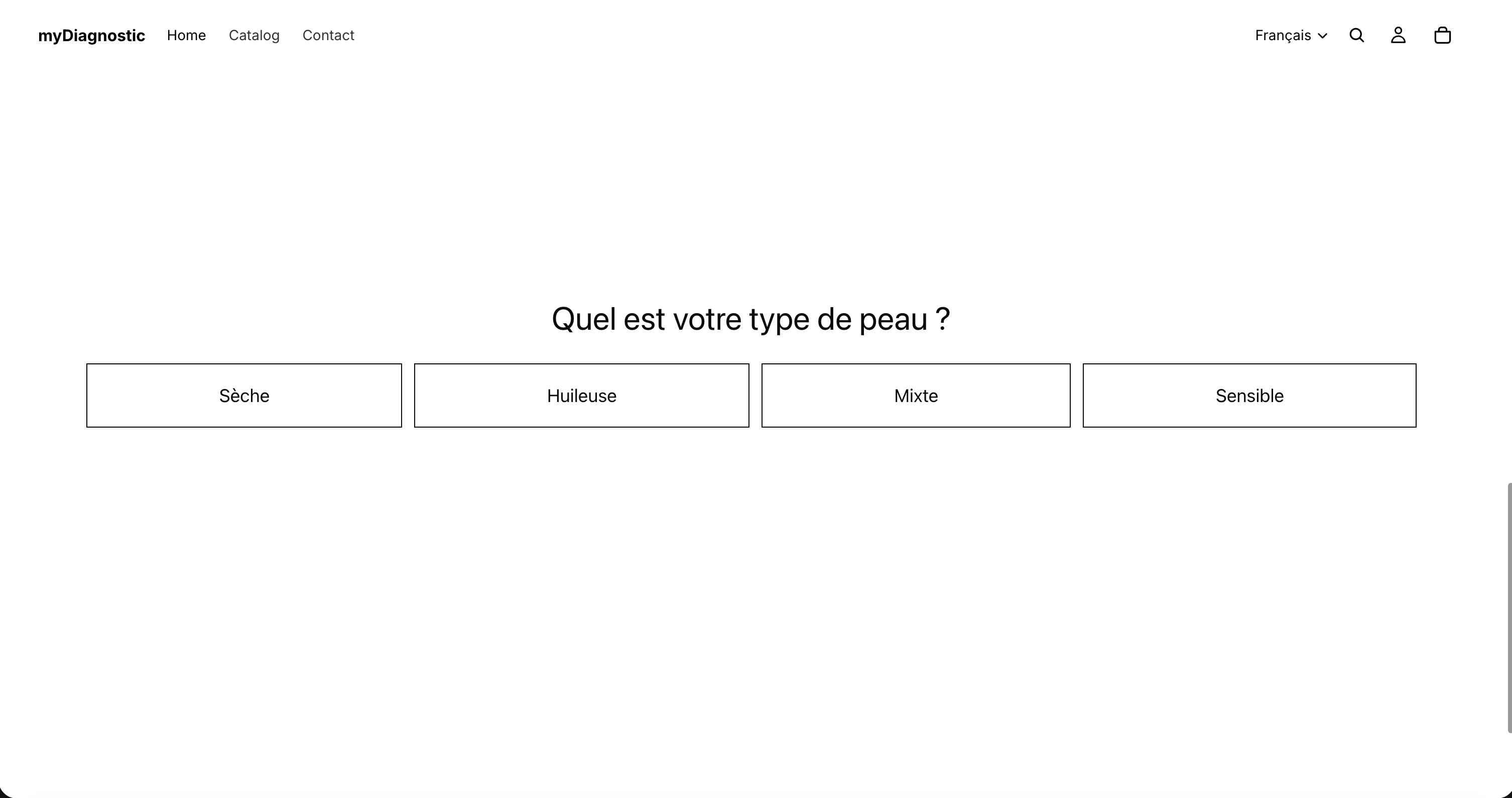
The widget reads the language of the page it is embedded in, which is the language your online store is serving that customer. Then it picks what to render:
- That language, when the quiz serves it.
- Otherwise a language the quiz serves that shares the same root, so a store in
fr-CAgets yourfrquiz, and a store inpt-BRmatches a quiz servingpt-PTbefore anything else. - Otherwise the quiz's default language.
Inside the chosen language, each string is resolved on its own. A field you translated shows your translation. A field you did not shows your original text rather than an empty space, so a half-translated quiz is incomplete, never broken. For text the app supplies rather than you, such as button labels and error messages, the app's own translation for that language is used, and English is the last resort.
That is the practical rule: translate what carries meaning first, the questions, the answers and the scenario copy. Anything you leave alone keeps working.
The result email
The email follows the run rather than your store. A customer who took the quiz in the added language receives their result email in that language, with the copy you translated in the Result email card, see Result email. The same goes for the permanent result link they receive with it, see Result permalink.
If the language stops being served, an email sent later falls back to the quiz's default language.
If your plan drops below Premium
Nothing is deleted. Your translations stay stored, and they come back the day the language is served again, with nothing to retype.
What changes is what customers read. Languages beyond what your plan serves stop being served and stop being editable, and every customer reads the default language even when their store language matched one of them. The Languages card lists them under a warning saying so: Kept but not served on your current plan. Visitors read English (en) even when their store language matches one of these. The translations stay in the database and come back as soon as the language is served again., with the name of your own default language in place of English.
The app home page carries the same news across your whole store, titled French (fr) is no longer served on your Premium plan for a single language, or 3 languages are no longer served on your Premium plan for several, and it lists each quiz with the languages it can no longer serve. The banner ends on the two ways out: upgrade to serve them again, or remove them from the quiz Settings to stop seeing the notice.
A store on Premium holding more languages than one keeps the first it added and stops serving the rest, so check that card after a downgrade rather than assuming which one survived.