Troubleshooting
The symptoms merchants report most often, each with the cause behind it and the steps that resolve it. Start here when the quiz does not behave the way you configured it.
The quiz does not appear on my online store
The page where you placed the quiz shows nothing, or a message where the quiz should be.
Read the page as a customer first, because the two causes look different. An empty space, with nothing at all where the quiz should be, means the block found no quiz to show: that is what an unconfigured block renders, and it is not the unavailable message covered in the next section. A visible message means the block named a quiz and was refused it.
- Check the status of the quiz. A quiz in Draft is not served, and the block shows Quiz temporarily unavailable. Please try again. in its place. Open the quiz, select Publish, and check that its badge reads Active, see Add the theme block.
- Check that the block is still on the page. It reaches your online store only once the theme is saved, on every template you placed it on. Reopen the theme editor, find the myDiagnostic Quiz block in the left sidebar, and select Save.
- Check the Quiz ID in the block settings. An empty field makes the block ask the app which quiz is published, which only works when exactly one is. Paste the Quiz ID of the quiz you want, copied from the Install on your storefront card of its Settings tab.
- Count your published quizzes if you left the field empty. With several published, the block shows nothing at all rather than guessing, and the theme editor preview says so, reading You have 2 quizzes published. Paste the Quiz ID of the one to show in the block settings. with your own number. Paste a Quiz ID, or unpublish until one remains.
- Wait a minute after publishing. With an empty Quiz ID field the app's answer is kept for one minute, so a freshly published quiz can take that long to appear. Reload the page before changing anything else.
Visitors see a message saying the quiz is unavailable
Where the quiz should be, customers read Quiz temporarily unavailable. Please try again.
- Check your monthly response limit. Once it is reached, quizzes stop accepting answers for the rest of the month and every visitor gets that message. Open Plans & Billing and read Responses this month: at the limit, upgrade, or wait for the counter to reset with the calendar month, see Plans and quotas.
- Check that the quiz is published if the message appears for one quiz only. The same message covers a block pointing at a quiz still in Draft. Publish it, see Add the theme block.
- Check your scoring if it happens at the end of a run rather than at the start. When no product collects a point, or every product that did is excluded, there is no result to show and the customer reads the same sentence. Attach products to more answers, or narrow your exclusions, see Product matching.
The quiz shows the wrong products
The recommendation is not the one you expected from those answers.
- Check which answers carry the products. Only a product attached to an answer collects points, so a product attached to nothing can never win. Open each answer and look at its product list, see Product matching.
- Check the weights. A product on +1 gains a third of what a product on +3 gains from the same answer, and points add up across every answer the customer picked. Raise or lower the weight on the answers that should decide the result.
- Check your exclusions. An answer with This answer excludes products turned on removes its products before the points are counted, whatever they collected, which promotes the next product in line. Turn the toggle off, or attach different products to that answer.
- Check the answers a customer actually picked, on the Responses tab, before changing the weights. A result that surprises you often comes from a path you did not anticipate rather than from a wrong weight.
The result always shows the same generic page
Customers get their products, with no description, no tips and no image.
- Check that a scenario exists for the trio the answers produce. A scenario is shown only when the three winning products are exactly the three of its trio, in any order. Any other combination lands on the generic result, which is normal behaviour rather than an error, see Result scenarios.
- Check the size of the trio against the size of the result. A scenario of three products is never shown against a result of two, and the app warns you on a shorter scenario with Incomplete trios rarely match: visitors will see the generic fallback. Complete the trio, see Product matching.
- Check your plan. Scenario editorial needs Basic or above: on Free your scenarios are kept and listed but never served, so every customer gets the generic result, see Plans and quotas.
The colours or fonts do not follow my settings
A screen ignores what you set in the Design tab.
- Check whether that page sets its own value. A per page setting always wins over the design tokens. Open the page in the editor and use the Reset next to the setting to hand it back, see Design and tokens.
- Check the granular controls. A value inside Granular controls (advanced) counts as soon as you moved it away from its default, and it beats the token above it. Use Reset granular controls to defaults to clear the whole block at once.
- Check your custom CSS if you wrote any. A rule there is applied last and can override a token without warning, and a rule the browser cannot make sense of is ignored in silence. Empty the field, save, and reload the storefront to see whether the setting comes back.
- Check the storefront rather than the preview for anything to do with custom CSS: the Live preview does not apply it, so a rule can look absent in the admin and work in the shop.
The quiz looks right on desktop and wrong on mobile
The phone rendering ignores sizes that are correct on a large screen.
- Check the Mobile responsive card first. Its six values apply below 768 px whether or not you touched them, so the question size, the answer size, the button padding, the content padding and the question image settings come from there on a phone, not from your typography settings, see Design and tokens.
- Check the mobile twin of the setting on the page itself. A mobile control left alone inherits the desktop value, and one you moved keeps its own value until you use its Reset, see Welcome screen.
- Check the height. Screens are not made uniform on phones: their height follows their content unless you set Minimum height (mobile) under Quiz height.
No email arrives
A customer finished the quiz and received nothing.
- Check that sending is on for that quiz. Send results by email is per quiz and off by default, in the quiz Settings tab, see Result email.
- Check that the quiz has its email gate enabled. The email is only sent to the address entered at the gate: an address collected by a welcome capture field is stored for your exports and never triggers it, see Email gate.
- Check the spam folder of the test address, then send a test from the Result email card. A failed test answers with the reason in a red banner, which is the one place a delivery problem is reported back to you.
- Check your mail server if you configured one. Sending stops going through it as soon as a credential changes, and the badge at the top of the Email sending card tells you which route your emails take, see Send with your own mail server.
- Check nothing else about your plan: sending the result email is not gated. Every plan sends it, and what Pro adds is control over how it looks, see Plan comparison.
The email arrives with a broken layout
The message reaches the inbox but does not look like the preview.
- Check the content width. The Container section of Layout and formatting accepts up to 800 px, and the control names the safe value: 600px is the safe width for most mail clients. Bring it back to 600 px, see Result email.
- Check your logo width against the card. Maximum logo width goes up to 560 px while the email body is 600 px wide, so a logo near the top of that range leaves almost no margin. Lower it and refresh the preview.
- Check whether images are blocked rather than broken. Many mail clients hide remote images until the reader allows them, which turns a logo and product photos into empty boxes on an otherwise correct layout. Ask your tester to display images and read the message again.
- Check the font. The email uses only fonts already installed on the reader's device, so a message that renders in a different typeface than your quiz is behaving as designed rather than breaking.
- Do not expect your custom CSS to help. It applies to the quiz on your online store and never to the email, which is built with the restricted set of formatting mail clients support.
A product is sold out or missing from the result
A card shows as unavailable, or fewer products appear than you expected.
- Check the product in Shopify. A product with no stock keeps its card, its title, its description and its price, gains a Sold out badge, and its button is disabled, see Result screen.
- Check the bundle button when one product of three is sold out. It stays active, adds the ones that can be bought, and a line under it explains that sold-out items are not added.
- Check how many products collected points if a card is missing entirely. A result can hold one or two cards: only products attached to a picked answer collect points, and an excluded product is removed whatever it collected, see Product matching.
- Check that the product still exists in your catalogue. Prices and availability are read from Shopify each time a result is rendered, so a product you deleted or unpublished stops behaving like the one you attached.
My second language is not served to visitors
Customers browsing in another language read the quiz in its default language.
- Check your plan. Additional languages need Premium or above, and a store below it serves the default language only, see Secondary languages.
- Check the Languages card of the quiz for a warning. A downgrade keeps the languages you added and stops serving those beyond your allowance, listing them under Kept but not served on your current plan. Upgrade, or remove the ones you no longer need.
- Check that your online store actually serves that language. The quiz reads the language of the page it sits in, so a language your store does not offer never reaches the quiz.
- Check the fields themselves. Adding a language adds translation tabs, it translates nothing: an untranslated field falls back to your original text, which reads as a language that is only half served.
I cannot publish another quiz, or create one
The Publish action is refused, or the new quiz form opens on a warning.
- Count your published quizzes. The limit counts published quizzes only, from 1 on Free to 25 on Premium, see Plans and quotas.
- Unpublish a quiz to free a slot. Creation is refused on the same count, so unpublishing one makes both actions available again straight away.
- Duplicate instead of creating, when you want a copy of an existing quiz. A duplicate arrives as a draft, so it takes no slot, and its Klaviyo and Mailchimp connections arrive switched off, see Klaviyo and Mailchimp.
- Keep as many drafts as you like. They are unlimited on every plan and count towards nothing.
I cannot save, or my changes disappeared
A bar sits at the top of the screen, or work you did is not on the storefront.
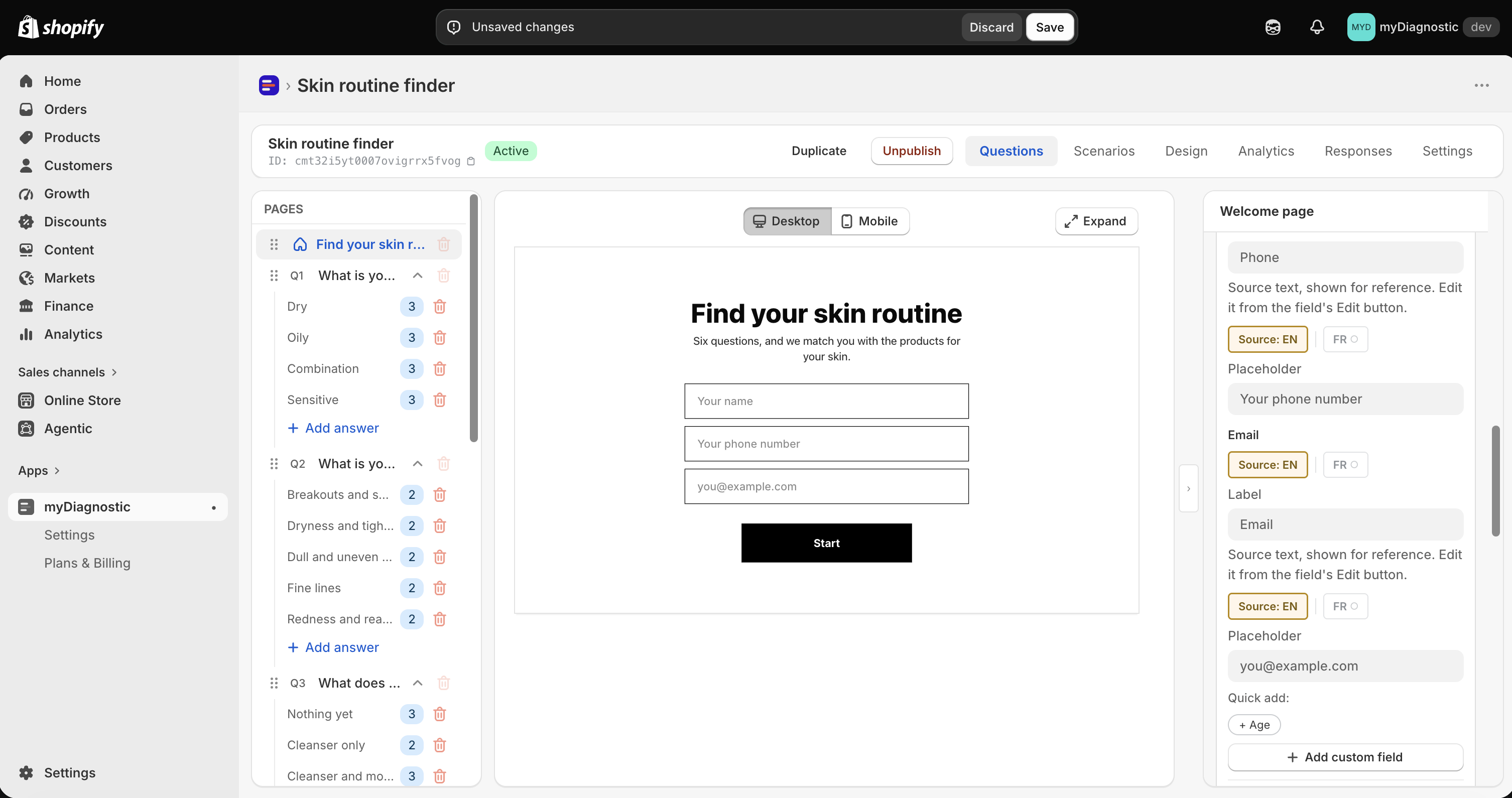
- Look for the bar at the top of the editor. It appears as soon as something changes and holds your work until you select Save, which writes the whole set at once, see Questions and answers.
- Save or discard before adding, deleting or moving a page. Those controls are disabled while a change is pending, with the title Save or discard your changes first.
- Know what Discard does before using it. It drops everything the bar was holding, and it does not undo the four things written immediately: adding a page, deleting a page, reordering pages and uploading an image. A question you added and then discarded stays in the quiz, empty, so delete it from the sidebar.
- Do not leave the editor on a confirmation dialog you did not read. Leaving with a change pending loses everything the bar was holding.